Google Analytics ga-disable Flag
Overview
Google Analytics recognizes a per-property window flag of the form window['ga-disable-<GA_ID>']. When this flag is set to true before the GA snippet runs (or before a subsequent hit), GA stops sending data for that property. Google recommends setting this flag for visitors who have opted out, and the TrueVault CMP follows that recommendation automatically for organizations that still share data with Google via their GA configuration.
Throughout the rest of this page, when we say a visitor is "opted out" we mean either of:
- The visitor has exercised a US Privacy opt-out (for example, via the Do Not Sell link or a GPC signal), or
- The visitor has turned off the Targeted Advertising consent in the banner or privacy center — including as part of a Decline All.
Either of these causes the CMP to set ga-disable as described below.
This is a stronger effect than simply denying Consent Mode signals. Under Consent Mode alone, when analytics_storage is denied, GA still sends cookieless pings that carry a gcs parameter encoding the denied state (see our Consent Mode V2 reference for details on gcs). With ga-disable set, no gcs parameter is sent at all — not even the "denied" variant — because the GA tag itself never communicates.
So for opted-out visitors on an org that leaves GA data sharing on, the CMP relies on ga-disable to guarantee full suppression of GA traffic, rather than depending solely on Consent Mode signals to shape the request.
When the CMP manages ga-disable
The CMP only manages the ga-disable flag when both of the following are true:
- Your organization has Google Analytics configured as a data recipient in TrueVault.
- Your organization has not indicated that data sharing is turned off in Google Analytics.
The second condition is controlled by a question on the Google Analytics vendor in your TrueVault Data Map:

If you answer Yes (data sharing is or will be turned off in GA), TrueVault treats GA as a vendor that does not require a user-level opt-out signal for sale/sharing purposes, and the CMP will not set or manage ga-disable on your site. If you answer No — or the question is unanswered — the CMP will set ga-disable when a visitor is opted out.
How the flag is set
When the CMP initializes on a page, and again every time consent settings change, it evaluates the visitor's opt-out status and reconfigures Google Analytics accordingly. For each configured GA ID, the CMP computes the corresponding window key:
window['ga-disable-<GA_ID>']
and either sets it to true (visitor is opted out) or deletes it (visitor is not opted out).
The CMP uses the GA ID configured in your TrueVault Google Analytics integration settings, and manages a ga-disable-<ID> flag for that ID.
For example, if your integration is configured with a Measurement ID of G-ABC123, an opted-out visitor will see:
window['ga-disable-G-ABC123'] === true
and a non-opted-out visitor will see that property absent from window.
Why this matters
Google Analytics' default configuration allows Google to use collected data for its own purposes (for example, to improve Google's services). Under CCPA/CPRA and similar US state privacy laws, that arrangement can constitute a "sale" or "sharing" of personal data — which means a visitor's opt-out signal must be honored for GA just like any other sale/sharing vendor.
Organizations have two ways to handle this:
- Turn off data sharing in Google Analytics (see Google's guide to disabling data sharing settings). This removes GA from the set of sale/sharing vendors, and no visitor-level opt-out is required for GA. Answer Yes to the survey question above so the CMP knows not to manage
ga-disable. - Leave data sharing on in Google Analytics. In this case, GA must respect visitor opt-outs. Answer No to the survey question above. The CMP will then set
window['ga-disable-<GA_ID>']for opted-out visitors, preventing GA from sending data for those visitors.
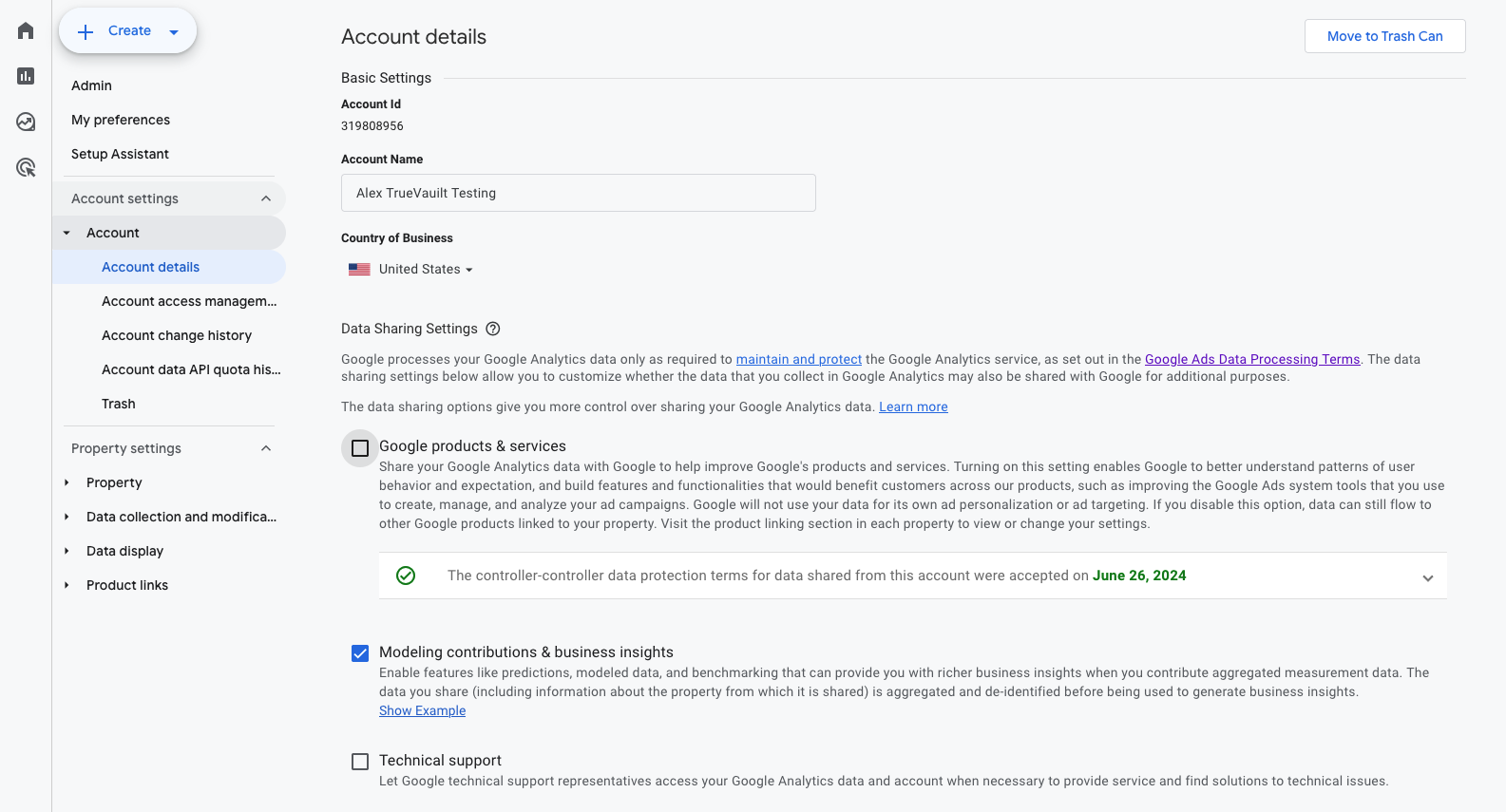
Where to find the data sharing settings in Google Analytics
To check or change this setting in Google Analytics:
- Click the gear icon (Admin) in the lower-left of the Google Analytics UI.
- Navigate to Account settings → Account → Account details.
- Scroll to the Data Sharing Settings section.
- Look at the Google products & services checkbox — this is the checkbox that corresponds to our data sharing question.
- If it is unchecked, data sharing with Google for its own product purposes is turned off; answer Yes to our survey question above.
- If it is checked, data sharing is still on; answer No to our survey question above.