Automation: Getting Started
In addition to our existing Google Analytics integration, we're rolling out other integrations on an ongoing basis.
Overview
TrueVault Polaris supports automatically transmitting data subject requests to certain vendors. This can save your team time and prevent manual errors when submitting requests to data recipients.
Supported Vendors and Request Types
| Vendor | Opt-Out | Deletion | Lookup | Notes |
| Klaviyo | ✅ | ✅ | ✅ |
|
| Shopify | ✅ | ✅ | ✅ |
|
| Stripe | — | ✅ | — | |
| Yotpo Loyalty | — | ✅ | — |
|
| Meta Ads (Facebook Ads) | ✅ | ✅ | — |
|
| HubSpot | — | ✅ | ✅ | |
| Gorgias | — | ✅ | ✅ |
|
| Zendesk | — | ✅ | ✅ |
|
Some vendors synchronize consumer information from the upstream platform. We have confirmed the following vendors respect platform automations:
| Vendor | Opt-Out | Deletion | Lookup | Platform |
| Recharge | — | ✅ | — | Shopify |
| Postscript | — | ✅ | — | Shopify |
Setting Up Integrations
We have a detailed guide with video walkthroughs for setting up each integration available here:
- Setting Up Integrations
- Facebook Ads (Meta Ads)
- Klaviyo
- Shopify
- Stripe
- Yotpo Loyalty
- HubSpot
- Gorgias
- Zendesk
Triggering Automation
Automation is keyed on the consumer email in a data subject request. Both requests submitted via your Privacy Center and those created manually in Polaris will be considered for automation. Polaris will begin processing the request for automation after the consumer has verified their email, or right away for request types that do not require email verification.
After the system finishes communicating with automated data recipients, Polaris will place the request in the Request Inbox as usual. Automated processing usually takes between 1 to 15 minutes for each request, and multiple requests can be processed simultaneously.
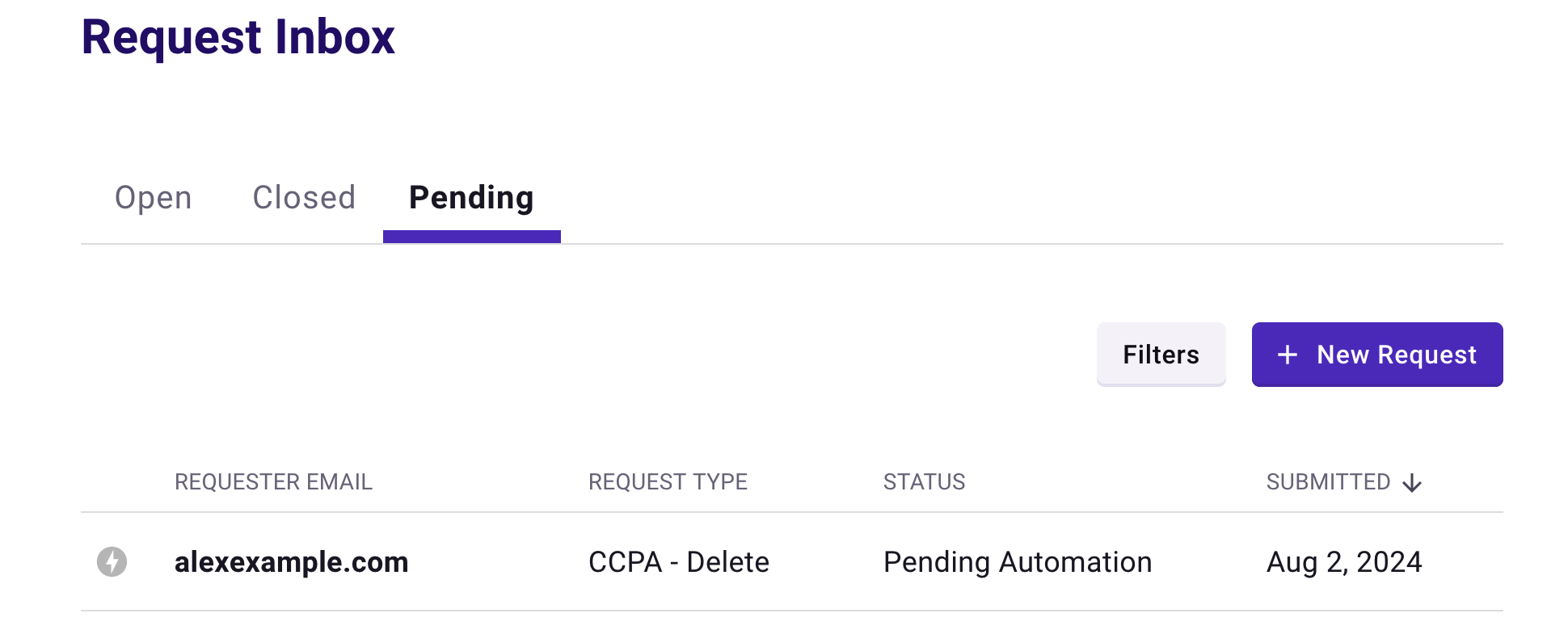
When a request is being processed by the system, it will appear in the Pending tab with a "Pending Automation" status
Validating Integrations in Polaris
Manually validating that the integrations are functioning is not required on an ongoing basis, but it can be illustrative to check to see what's happening behind the scenes.
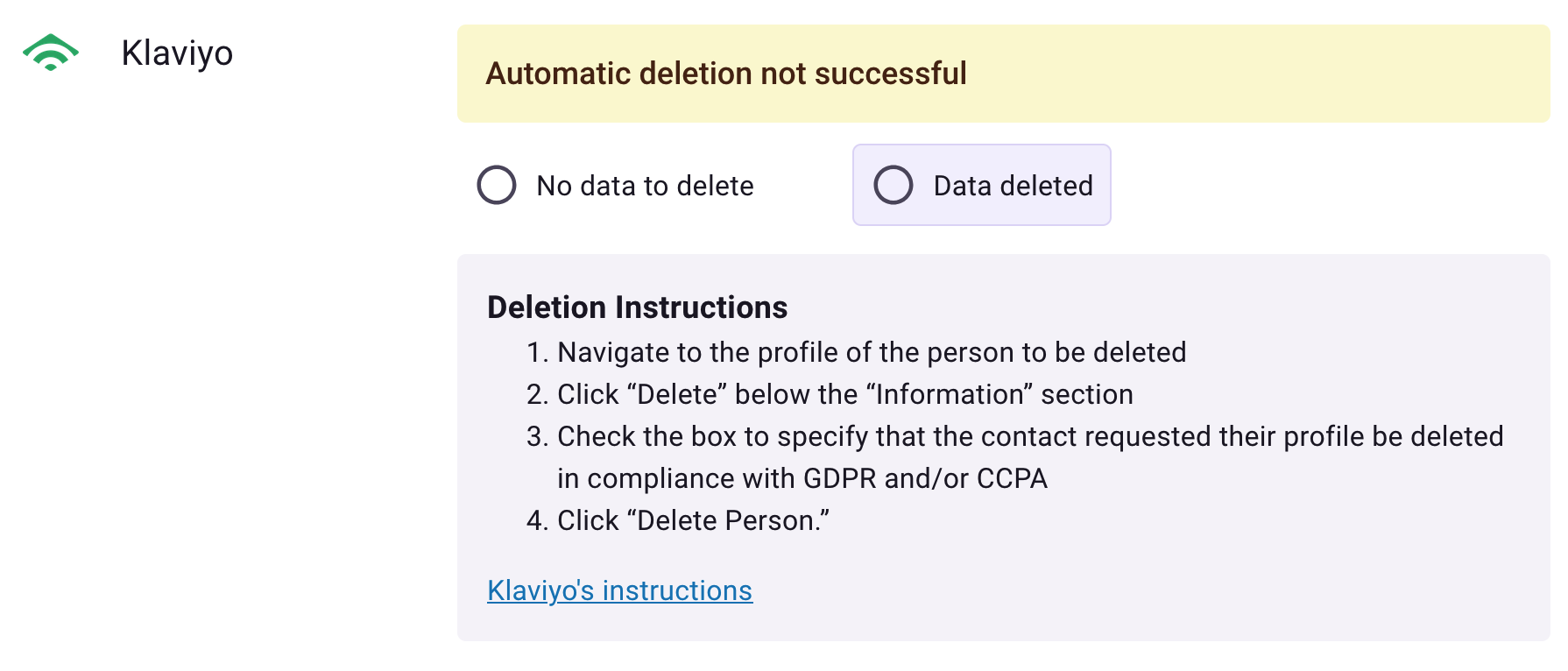
In Polaris, automated data recipients show an outcome for each automated vendor. There are four possible outcomes for a vendor request:
-
Confirmed: The request (e.g., Delete) was sent to the vendor, and the vendor confirmed that the operation has completed in their system

-
Sent: The request was sent to the vendor, but the vendor did not confirm that the operation finished. This frequently happens for vendors like Shopify that anonymize on a delay from when the request is submitted. There's typically nothing more you need to do in this case, as it's expected that some vendors operate on a delay or otherwise do not confirm automated requests.

-
No Data: The request was sent to the vendor, and the vendor confirmed the consumer's email does not exist in their system

-
Failed: The vendor was unable to service the request, or the request failed to be delivered to the vendor. This may indicate a temporary outage on the vendor side or a configuration issue. The request workflow will need to be manually performed for this vendor.
If you are frequently observing this outcome, double check your integration configuration or get in touch so we can help investigate.
Automating Existing Requests
If you have existing data subject requests from before setting up your vendor integrations, you can submit these requests to the automation queue for the supported vendors by clicking the "Automate" button in a request's options dropdown.
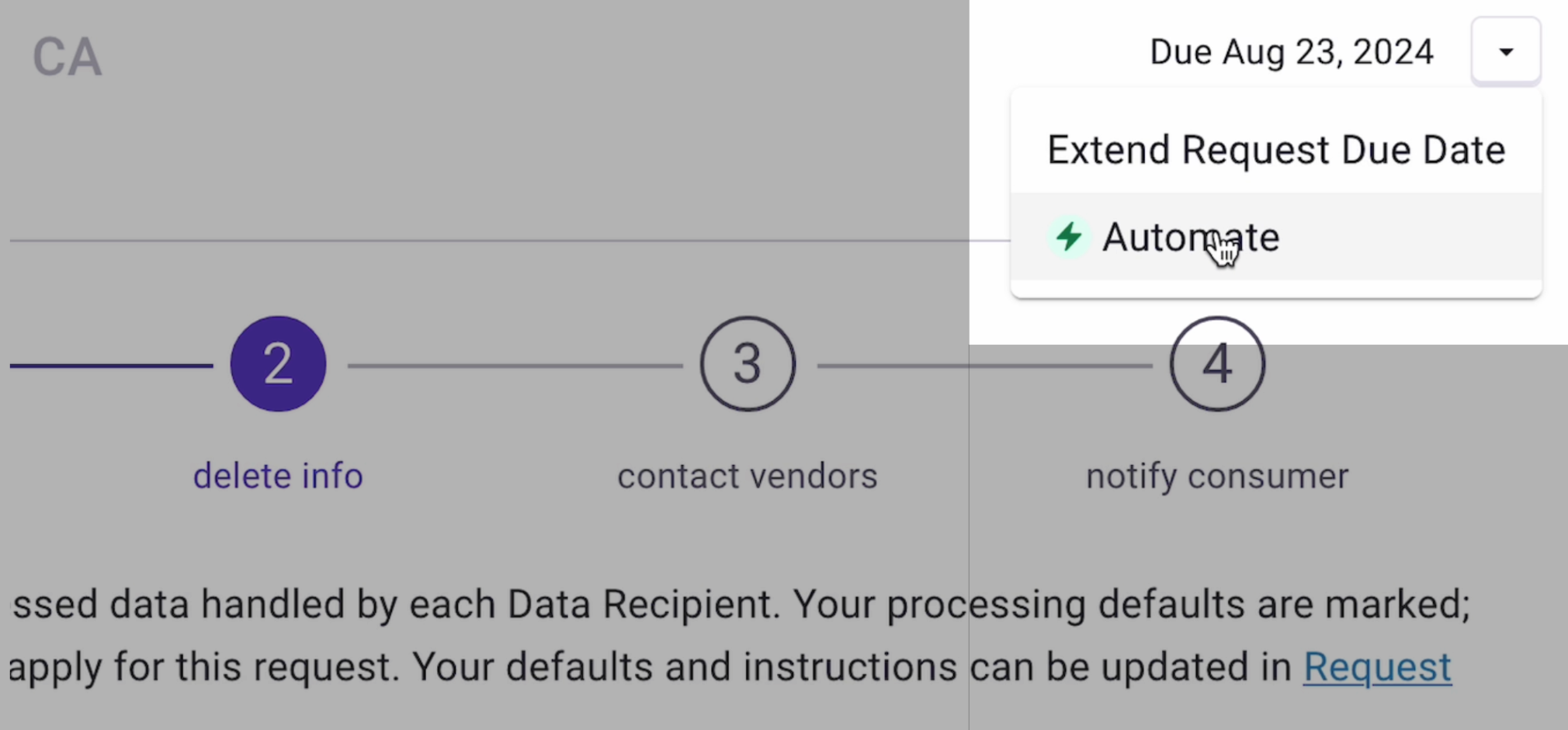
This workflow is only available for a request that meets the following conditions:
- It has not been previously automated
- It is a supported request type for automation
- It is still in the Verify Consumer or Delete Info step