Debug Your Consent Setup with TrueScan
TrueScan loads your website, simulates a visitor who has declined tracking, and reports which third-party scripts kept loading anyway. Use it to find tags that are slipping past your consent banner and to verify your tag delivery setup is wired up correctly.
You can run TrueScan from TrueVault under Privacy Center → Website Consent → TrueScan.
Video Overview
Prerequisites
Before running TrueScan, make sure you've completed:
Running a Scan
- Open the TrueScan tab in TrueVault under Privacy Center → Website Consent.
- Enter the URL you want to scan (TrueScan suggests your primary website URL by default).
- Click Start Scan. A scan typically takes 1–3 minutes.
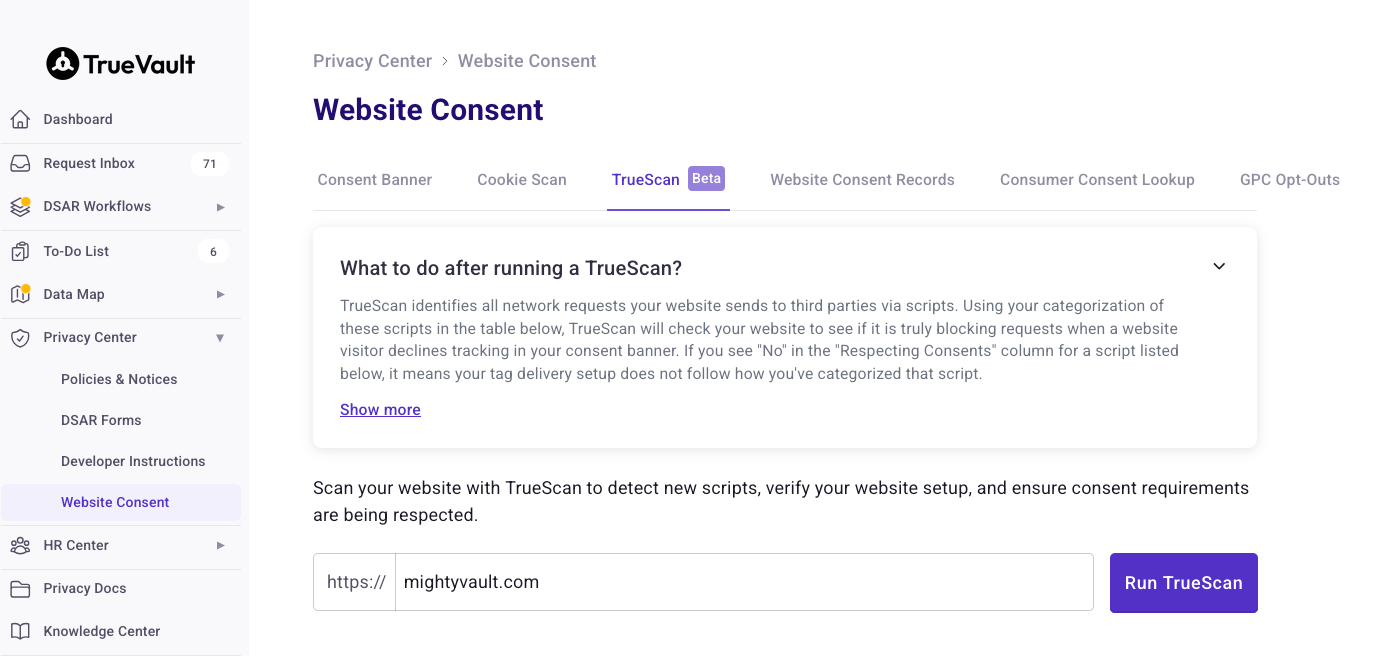
While the scan runs, TrueScan:
- Loads the page once with no consent decision and records every third-party request.
- Reloads with a Decline All consent decision and records which third-party requests still fire.
- (If applicable) reloads from a US state with the opt-out flag set and records which scripts ignored the opt-out signal.
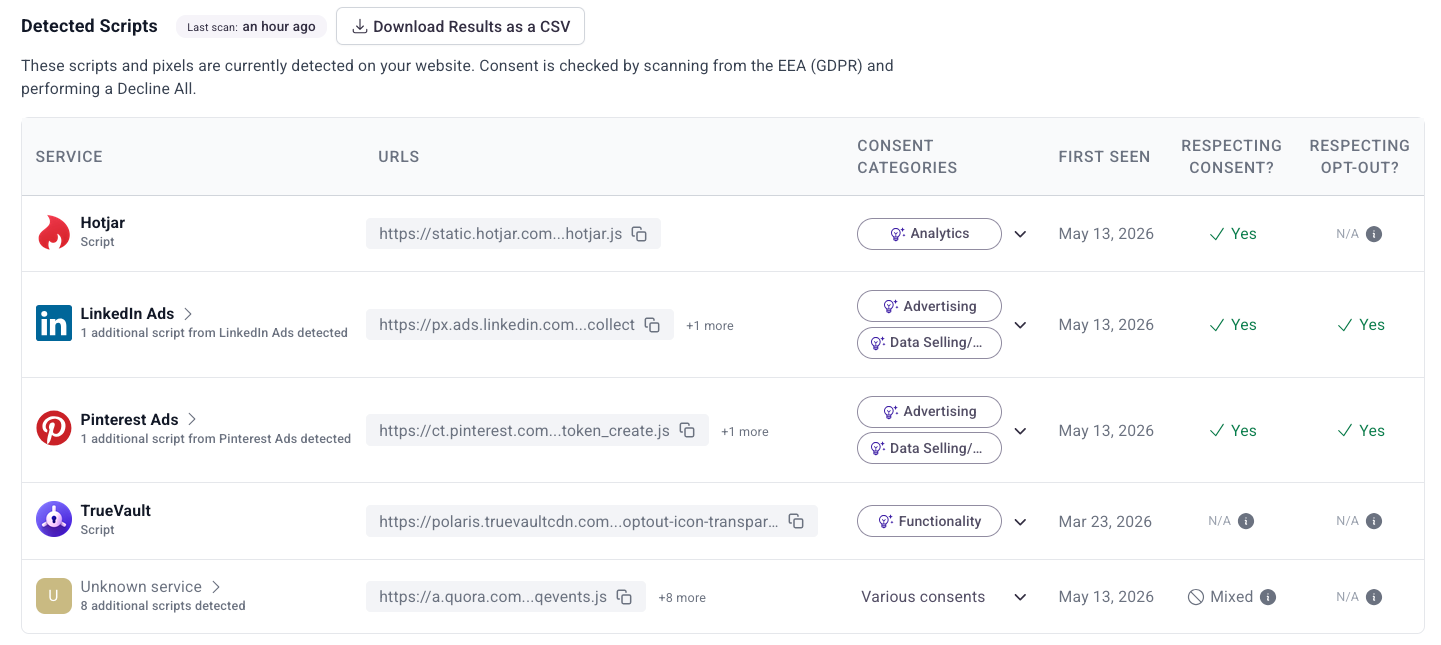
Reading the Detected Scripts Table
Each row in Detected Scripts represents a third-party request the scanner saw on your site. Scripts from the same vendor are grouped — expand a group to see individual URLs.
| Column | What it means |
|---|---|
| Service | The third party making the request (e.g., Google Analytics, Meta, Klaviyo). "Unknown service" means we couldn't identify the vendor — review the URL and categorize it manually. |
| URLs | The exact request URL. Use this to confirm what's loading. |
| Consent Categories | The categories you assign to this script. TrueScan auto-assigns an initial category for known scripts based on our cookie database, but you should review and confirm each one. TrueScan uses these to decide whether the script should have loaded after Decline All. |
| First Seen | When TrueScan first detected this script on your site. New scripts since the last scan are tagged New. |
| Respecting Consent? | The result of the Decline All check. See below. |
| Respecting Opt-Out? | (Only for scripts categorized as Data Selling/Sharing.) Whether the script honored the opt-out signal. |
What the "Respecting Consent?" column tells you
| Value | Meaning |
|---|---|
| Yes (green) | The script did not load after Decline All. Your consent setup is working for this script. |
| No (red) | The script still loaded after Decline All, even though you marked it as requiring consent. |
| Mixed | For a collapsed group, some scripts respected consent and others didn't. Expand the group to see which is which. |
| N/A | The script is categorized as only Functionality or Security, which do not require consent. |
| Scan again | You changed the script's consent categories since the last scan, or a configuration change requires a new scan. Re-run TrueScan to re-evaluate. |
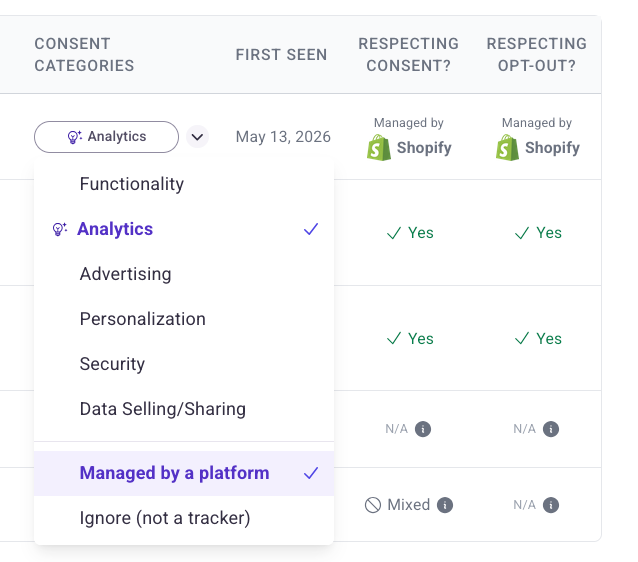
| Managed by <Vendor> | You marked this script as managed by a platform (such as Shopify). Consent for these scripts is enforced inside the platform's sandbox — see Scripts managed by a platform below. |
| Blank | You haven't categorized the script yet. Assign categories to enable consent checks. |
Fixing Scripts Marked "No"
A No means the script kept loading after the visitor declined tracking. The fix depends on how the script is delivered.
Scripts delivered through Google Tag Manager
This is the most common case. The tag exists in GTM, but its Consent Settings in Tag Configuration do not require the consent signal that maps to its category.
- In GTM, open the tag corresponding to the script in question.
- Go to Tag Configuration → Advanced Settings → Consent Settings.
- Select Require additional consent for tag to fire and add the required consent:
- Advertising →
ad_storage - Analytics →
analytics_storage - Personalization →
personalization_storage - Data Selling/Sharing (US opt-out) →
tv_not_opted_out(see US & Canada Opt Outs)
- Advertising →
- Submit and Publish the GTM container.
- Re-run TrueScan to confirm the script now reports Yes.
If you have many tags to update, use Consent Overview to bulk-edit consent settings.
Scripts hard-coded in your site's HTML
Tags injected directly in your HTML (or by a theme/template) bypass GTM and can't be controlled via GTM consent settings. We strongly recommend moving the tag into GTM and applying the consent settings above — it's the most reliable way to block the request before it fires.
If moving into GTM isn't an option, you can gate the script with the consentChanged event directly. See Consent Management without Google Tag Manager. Note that scripts gated this way will likely still show as No in TrueScan: the network request is issued by the script tag before TrueVault's JS has a chance to remove it. If your organization is comfortable with that timing, mark the script's category dropdown as Managed by a platform → TrueVault to suppress the No.
Google tags showing "No"
Many Google tags (Google Ads, GA4, etc.) are configured by default to keep loading even after Decline All — they switch into a limited-data-use mode and signal the user's consent state to Google rather than blocking the request outright. TrueScan still flags this as No because the network request happened.
If your compliance posture requires that the request not fire at all, set Additional Consents Required on the GTM tag (instead of relying only on Google's built-in Consent Mode behavior).
Scripts Managed by a Platform
Some scripts load inside a platform sandbox that handles consent itself — Shopify App Pixels are the most common example. These scripts always appear in the network log even when they're behaving correctly, because the platform loads the sandbox and then enforces consent inside it.
For these, set the script's category dropdown to Managed by a platform and choose the platform (e.g., Shopify). TrueScan will then show Managed by <Vendor> instead of flagging it.
See Shopify App Pixel Consent for the Shopify-specific setup.
Reading the Website Check
Below the script table, TrueScan shows a Website Check — a checklist of CMP-level issues that affect every tag on your site. Fix anything flagged red or yellow before chasing individual script problems, since these can cause consent to misbehave globally.
Common findings:
- CMP not detected —
polaris.jswas not found on the page. Make sure you're loading it from your organization's unique link in Developer Instructions. - CMP version is outdated — You're loading the static (unversioned) script. Switch to the org-specific link in Developer Instructions.
- CMP is not using the correct organization ID — The script on the page is from a different organization. Replace it with your org's link.
- CMP loading asynchronously — The
polaris.js<script>tag hasdeferorasyncset, or is being injected by another script. Remove these attributes so the CMP can communicate consent to GTM and Shopify before tags fire. - GTM script loaded before CMP — Move the
polaris.js<script>tag above the GTM snippet in your<head>. - At least one script is loading before polaris.js — Other scripts appear in the
<head>beforepolaris.js. Load the CMP as the first functional script. (You can ignore this warning ifview-sourceconfirmspolaris.jsis the first functional script and the others are not actively running.) - Multiple scripts detected — More than one
polaris.jsis loaded on the page. Remove duplicates. - Shopify API features not detected —
loadFeaturesandcustomerPrivacyfrom the Shopify Customer Privacy API aren't available on the storefront. Contact your TrueVault representative for help.
Iterating
TrueScan is designed to be re-run as you fix issues:
- Categorize any new scripts the latest scan surfaced.
- Update GTM consent settings (or platform settings) for anything marked No.
- Publish your GTM container.
- Run TrueScan again.
Scripts where you changed categorization between runs will show Scan again until you re-scan. Once everything reports Yes, N/A, or Managed by <Vendor>, your consent enforcement is verified end-to-end.
Run a scan periodically (monthly is a reasonable cadence for most sites) to catch new third parties added by marketing campaigns, theme updates, or new integrations.
Related Guides
- Testing your Google Tag Manager Setup — verify the consent signal handoff between the banner and GTM using Tag Assistant.
consentChangedCMP Event Reference — for gating scripts outside of GTM.- Consent Management without Google Tag Manager.