Google Analytics
Google Analytics 4 (GA4) tags handle consent differently than most third-party tags in Google Tag Manager. Because GA4 has native support for Google Consent Mode V2, its tags include built-in consent checks — they automatically listen to the consent signals set by the TrueVault Polaris CMP template and adjust their behavior accordingly. This page explains what that built-in behavior does (and doesn't) block, and how to fully block GA4 from loading if that is your goal.
How Built-In Consent Checks Work
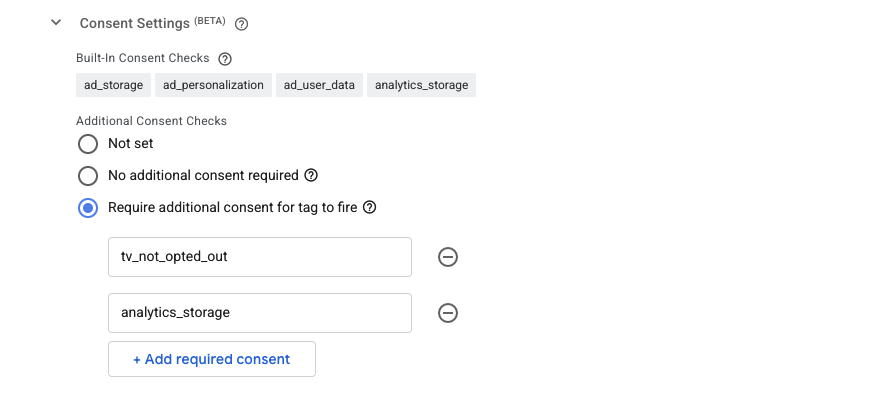
GA4 tags ship with built-in consent checks for ad_storage, ad_personalization, ad_user_data, and analytics_storage. You can see these listed under Consent Settings → Built-In Consent Checks when editing the tag in GTM.
With built-in checks, the tag still fires even when consent is denied — but it modifies its behavior based on the consent state. When analytics_storage is denied, GA4:
- Will not read or write first-party analytics cookies or persistent identifiers
- Sends limited, cookieless "pings" instead of full hits, containing non-identifying information (timestamp, user agent, referrer)
- Allows Google to use those pings for aggregate behavioral and conversion modeling
This is why, when testing your site, you will still see network requests to google-analytics.com after a consumer declines analytics consent. The requests carry a gcs parameter reflecting the denied state (e.g., G100 instead of G111) and contain anonymized data rather than full analytics hits. See Consent Mode V2 and the TrueVault GTM Template for a full breakdown of the gcs values and how to inspect them.
For many organizations this is the desired behavior: consumer privacy choices are honored, while Google can still provide modeled, aggregate reporting. If that works for you, no additional configuration is needed — the built-in checks handle everything.
Fully Blocking Google Analytics
Some organizations prefer that GA4 make no network requests at all for consumers who have declined analytics consent or opted out. The cookieless pings described above do not use cookies or identifiers, but they are still requests to Google's servers, and you may want to eliminate them entirely.
To do this, add the consent signals to the tag's Additional Consent Checks section:
- In GTM, open your GA4 tag and go to Advanced Settings → Consent Settings
- Select Require additional consent for tag to fire
- Click Add required consent and add
analytics_storage - If you also want to block the tag for opted-out consumers in the US and Canada, add
tv_not_opted_outas well (see US & Canada Opt Outs)
Why This Isn't Redundant
Adding analytics_storage as an additional consent check may look redundant — it's already listed under the tag's built-in checks. But the two mechanisms behave very differently:
- Built-in consent checks never block the tag. The tag fires and internally adapts its behavior to the consent state (full hits vs. anonymized pings).
- Additional consent checks are a hard gate enforced by Google Tag Manager itself. Per Google's Tag Manager consent documentation, a tag with required additional consent "will only fire if the status of all specified consent types are granted when the tag is triggered." If any required signal is denied, the tag does not execute at all — no script loads, no pings, no requests to Google.
In short: built-in checks anonymize, additional checks block. Requiring analytics_storage in the Additional Consent Checks section is the correct way to guarantee GA4 stays completely silent for consumers who have declined analytics consent.
Note: Fully blocking the tag also disables Google's cookieless pings, which means you lose the aggregate behavioral and conversion modeling Google provides for non-consenting traffic. Weigh this trade-off before choosing the stricter setup.