Automation: Klaviyo Integration Setup
Text Guide
- Log in to your Klaviyo account and open Account Settings - API Keys
- Click
Create Private API Key - Give your API key a name like
TrueVault Integration - Give your API key Full Access
- Click
Create - Copy the Private Key shown on the next page somewhere safe like a password manager
- This is the only time it will be shown in Klaviyo
- Navigate to the Integrations Page in Polaris, and click
Connectfor Klaviyo - Click
Connectin the popup and enter the Private Key you generated earlier - Close the connection popup
Klaviyo Opt Outs
- Toggle on the Opt Out option in the TrueVault API Integration
- Choose how you would like to label “Opt Outs”
- Navigate to Integrations in Klaviyo
- On all Segments integrated into Ad Networks, Edit the Definition
- Include an
Andcondition that theCustom Propertyof your Opt Out labelIs Not Set
Video Guide
Validating the Integration
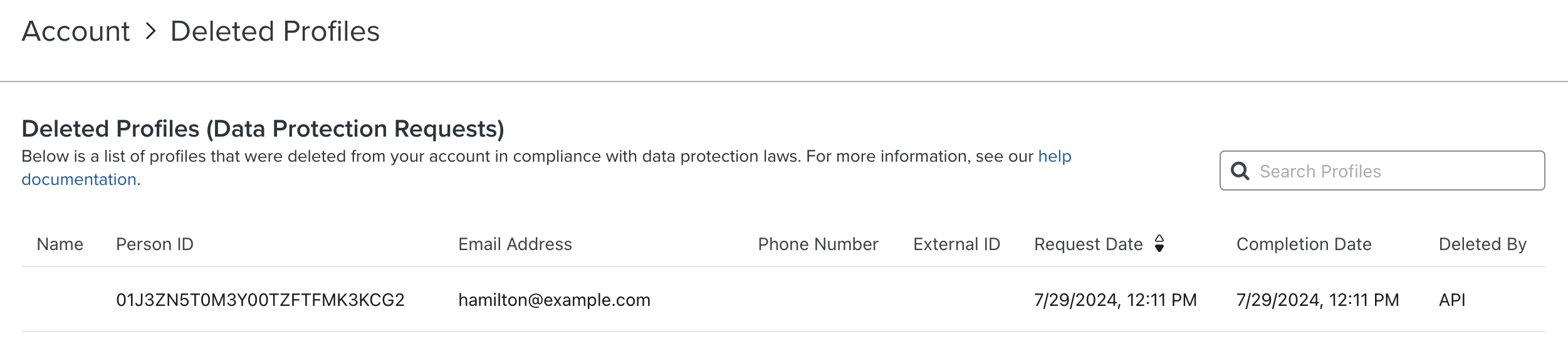
To verify a deletion request in Klaviyo, log in to your Klaviyo account and navigate to the Deleted Profiles page. You should see a table referencing user profiles and their corresponding email that have been deleted. Any profiles that have been deleted by Polaris will appear as an API source in the Deleted By column.
In our testing, we have observed delays up to 30 minutes before a consumer appears in Klaviyo's Deleted Profiles list.
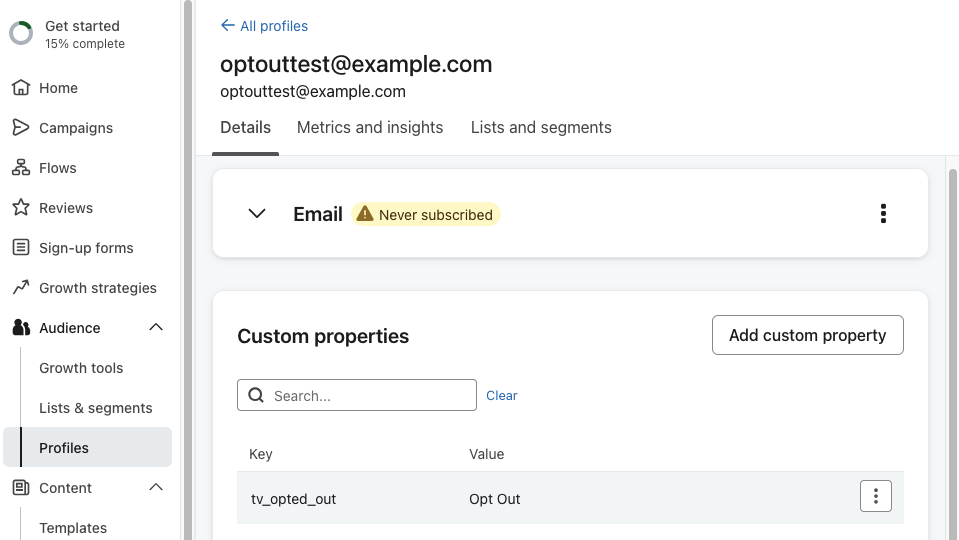
To verify an opt-out request in Klaviyo, log in to your Klaviyo account and navigate to the Audience -> Profiles tab. Open the consumer in question and ensure your configured Custom Property with the value Opt Out has been set: