Consent Banner Settings Reference
The consent banner is configured in the TrueVault app under Privacy Center → Website Consent → Consent Banner. This article describes every setting on that page: what it changes on your website, and when it appears.
Settings are saved only when you select Publish Changes. Until then, the page shows an unpublished-changes banner and your live site keeps running the previously published configuration.
This article describes how the settings behave. It is not legal advice about how you should configure them. Work with your privacy or legal team when choosing banner types and regions.
How the page adapts to your configuration
The page is progressive: it shows the settings that apply to your configuration and keeps the rest out of your way. Three things determine which settings are in play.
| What it depends on | Who or what sets it | Settings it controls |
|---|---|---|
| Organization features | Enabled for your organization by TrueVault | Canada Banner, EEA/UK/CH Banner, Global Consent, Preferences Screen Disclaimer Text |
| Business Survey answers | Your answers about collecting data from minors | Children Consent States row, California row |
| Selections on this page | Which banner types you have chosen so far | Every appearance, text, behavior, and testing setting |
The third is the one you will notice most, because the page grows as you configure it. Informational Banner Text appears once you set at least one US region to Informational, and the appearance settings appear once at least one interactive banner (opt-in or opt-out) is configured.
If you are looking for a setting described below and don't see it yet, the Appears when note in its section says what brings it out.
Whether the banner offers an opt-out of the sale or sharing of personal data is not a setting on this page. The Targeted Advertising toggle on the preferences screen, the one-click opt-out, and the Your Privacy Choices link are determined by your Data Map: which vendors you use and how you use them, including whether any of them sell or share personal information. If the banner shows a selling or sharing choice you don't expect, or is missing one you do, review your vendors in your Data Map.
Banner settings by region
These settings decide which banner — if any — a visitor sees, based on their location. See Types of Consent Banners for what each banner type does once it is shown.
US Banner
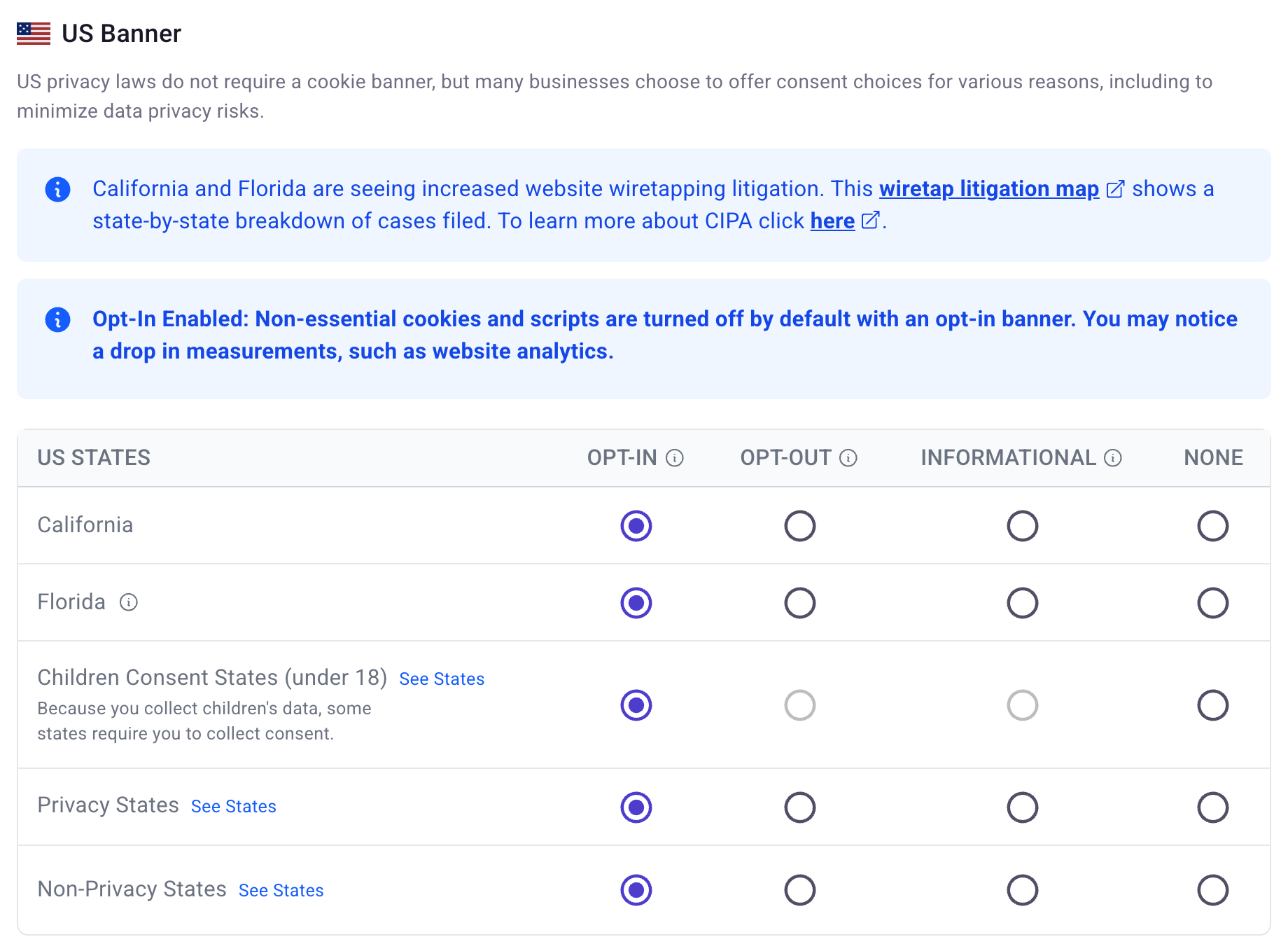
Appears when: always.
Assigns a banner type to each group of US states. Each row takes one of four values:
- Opt-In — optional purposes start denied; the visitor must accept before consent-requiring tags run.
- Opt-Out — optional purposes start granted; the visitor can turn them off.
- Informational — a notice with no purpose choices. It does not gate cookies or trackers, so it is not a substitute for collecting affirmative consent where that is required.
- None — no banner in those states.
The rows are:
| Row | States covered |
|---|---|
| California | California only |
| Florida | Florida only |
| Children Consent States | See Children Consent States below |
| Privacy States | The 20 states with comprehensive privacy laws: Colorado, Connecticut, Delaware, Florida, Indiana, Iowa, Kentucky, Maryland, Minnesota, Montana, Nebraska, Nevada, New Hampshire, New Jersey, Oregon, Rhode Island, Tennessee, Texas, Utah, and Virginia |
| Non-Privacy States | The remaining 29 states plus the District of Columbia |
California and Florida have their own rows because both currently see significantly more website wiretapping litigation than other states. Hover See States on the grouped rows to see the exact list; a state that you have overridden individually is greyed out there, and the row shows "Some states have been overridden below".
Every visible row must have a value before you can publish. A row with no selection shows Select Banner Type in red, and Publish Changes reports which rows are still unset.
Selecting Opt-In for any US row adds a notice that non-essential cookies and scripts will be off by default, which usually reduces measured analytics volume.
Children Consent States
This row appears when your Business Survey says your business collects data directly from minors. Its label and coverage depend on which question you answered yes to:
| Business Survey answer | Row label | States covered | California row |
|---|---|---|---|
| Collects directly from minors under 18 | Children Consent States (under 18) | Colorado, Connecticut, Delaware, Maryland, Montana, New Jersey | Still shown separately |
| Collects directly from minors under 16 | Children Consent States (under 16) | The six above, plus California and New Hampshire | Hidden — California is covered by this row |
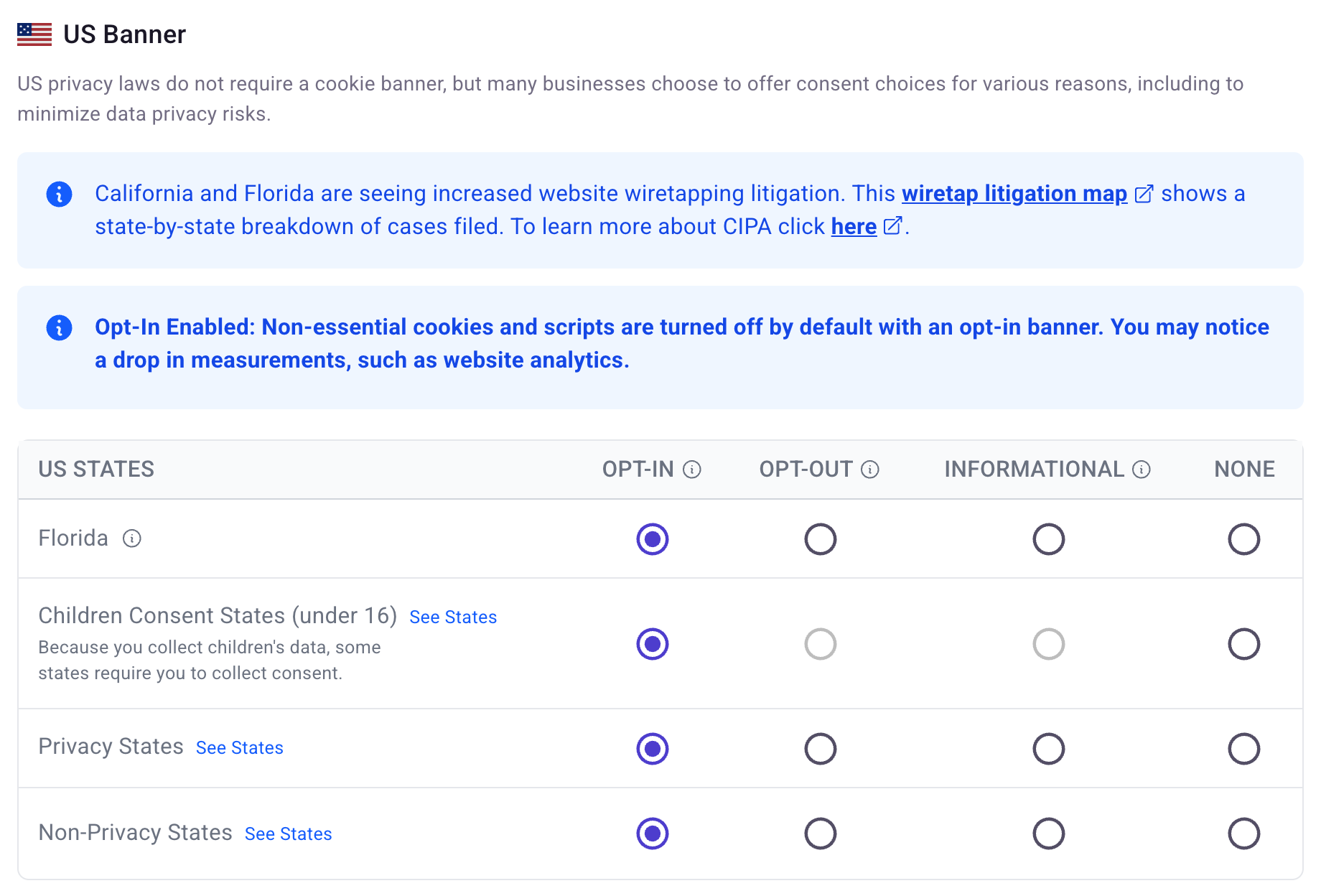
Only Opt-In and None can be selected in this row. Opt-Out and Informational are disabled, with a tooltip explaining that consent is required because of your Business Survey responses.
Behind the scenes this row is expanded into per-state settings, and an explicit state override (below) wins over it.
Advanced Banner Options

Appears when: always.
Turning this on reveals a US States Overrides table where you assign a banner type to specific states, overriding whichever group row would otherwise apply to them.
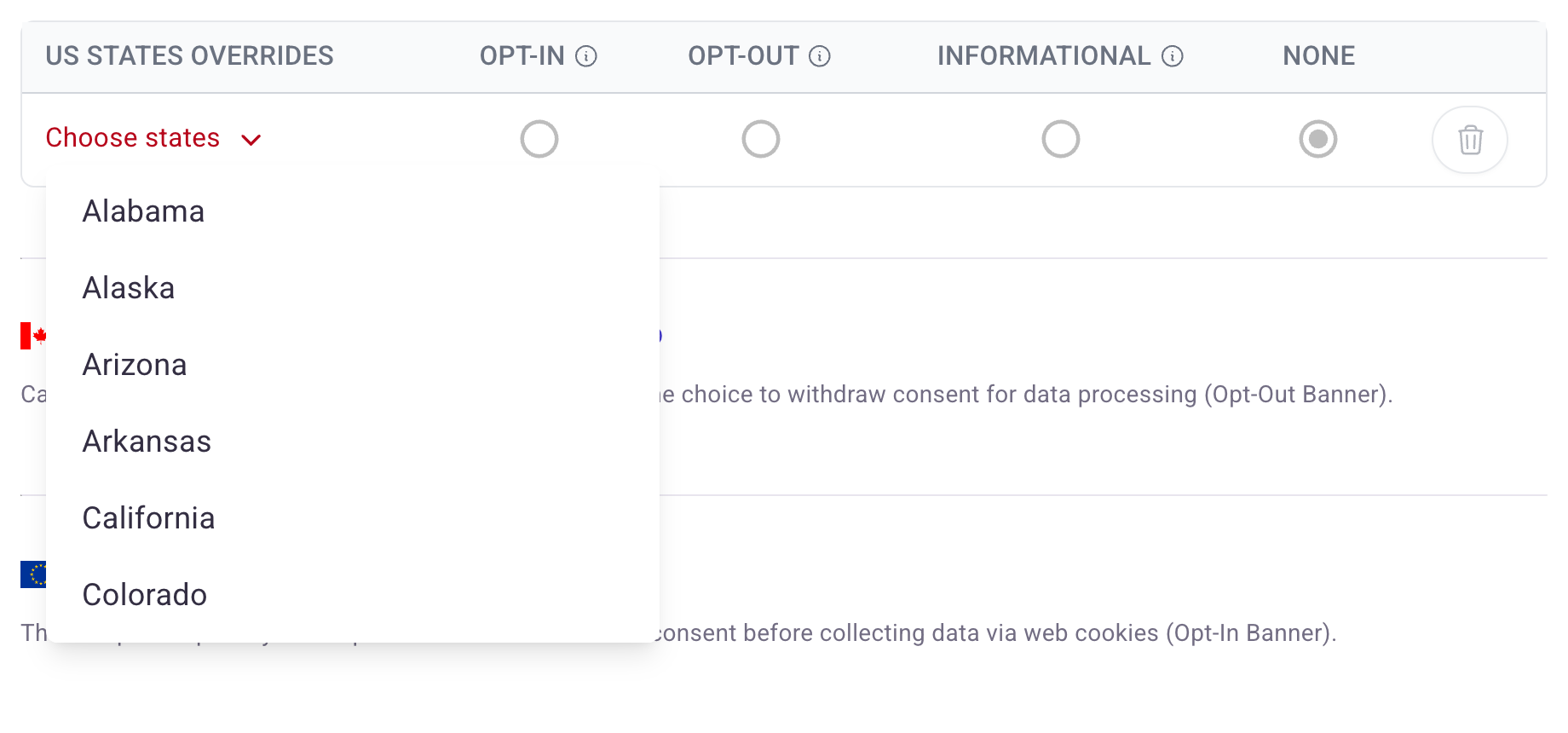
Each override row combines a set of states with one banner type, so use several rows if different states need different types. Every state except Florida can be overridden; Florida has its own row in the main table.
An override applies even when its value is None, which is how you exclude specific states from a banner that the group row turns on. Turning the toggle back off asks you to confirm, then clears every override.
Canada Banner

Appears when: your organization has the PIPEDA feature enabled.
A single on/off toggle. When it is on, visitors in Quebec see the opt-in banner and visitors elsewhere in Canada see the opt-out banner. TrueVault recommends leaving it on, which the page indicates until you do.
EEA/UK/CH Banner

Appears when: your organization has the GDPR feature enabled.
A single on/off toggle. When it is on, visitors in the European Economic Area, the United Kingdom, and Switzerland see the GDPR banner. Hover the globe icon next to the title for the full country list.
The GDPR banner's copy and buttons are supplied by TrueVault in each supported language, so the text settings further down the page do not apply to it.
Global Consent
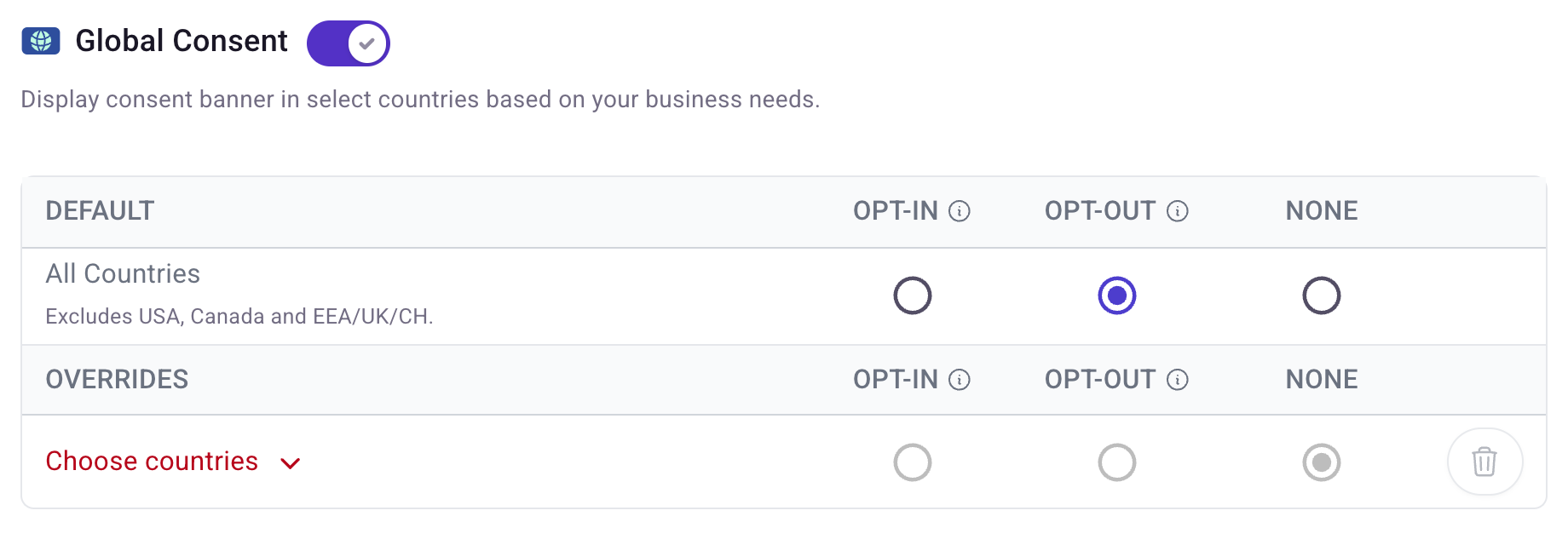
Appears when: your organization has the Global Consent feature enabled.
Covers countries that none of the dedicated regional configurations reach. The All Countries default row explicitly excludes the USA, Canada, and EEA/UK/CH — a visitor in those regions always gets the corresponding regional banner instead.
Only Opt-In, Opt-Out, and None are available here; there is no informational option. Use Add country to add OVERRIDES rows that assign a different banner type to specific countries.
Turning the section toggle off asks you to confirm, then clears the default and every country override.
Which banner a visitor sees
Only one banner applies to any visitor. TrueVault resolves it in this order:
- A state-specific setting — a row in US States Overrides, the Florida row, or a Children Consent State.
- The EEA/UK/CH Banner, for visitors in those countries.
- The Canada Banner, for visitors in Canada.
- The US Banner group row that matches the visitor's state.
- Global Consent, for everyone else.
Florida and the Children Consent States are stored as state-specific settings, which is why an explicit US States Override for one of those states takes precedence over them.
Appearance settings
Appears when: at least one interactive banner is configured — a US region set to opt-in or opt-out, the Canada Banner, the EEA/UK/CH Banner, or Global Consent. If your only banner is the US informational banner, these three settings stay hidden.
Semi-Transparent Background Color

Switches the banner between a light and a dark treatment. Dark mode adjusts text and button colors along with the background, so the banner stays readable rather than simply inverting.
Icon Color
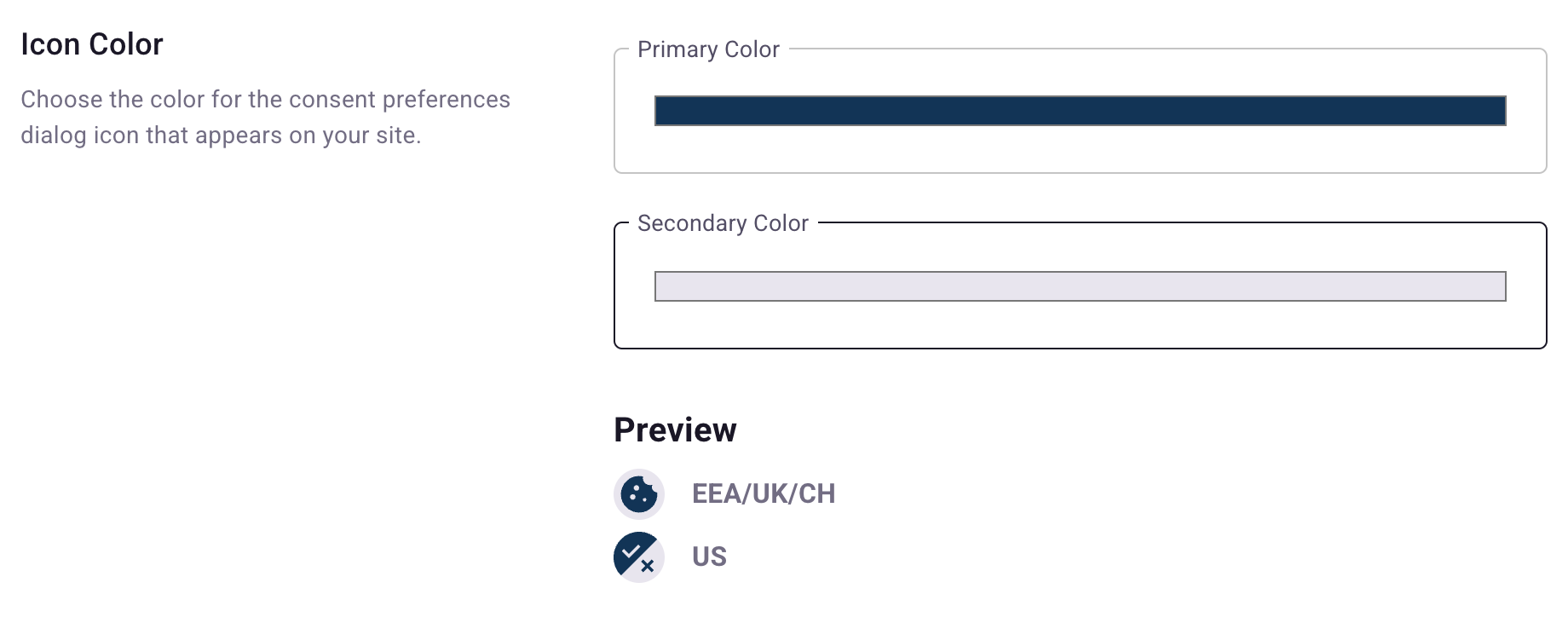
Sets the two colors of the floating cookie button that visitors use to reopen their preferences after dismissing the banner. Primary Color is the foreground glyph and Secondary Color is the circular background. The preview updates as you change them and shows one icon per enabled region, because the US and EEA/UK/CH icons use different glyphs.
Informational-only banners have no preferences screen and therefore no floating button.
Screen Position

Where the banner and the floating cookie button appear. Bottom left is the default and the most common choice. Center Screen places the banner in the middle of the viewport.
Text settings
Custom banner copy applies to the English versions of the banners only. Visitors who switch to another language see TrueVault's translated copy, and the GDPR banner always uses TrueVault's copy.
Body-copy fields support the %{privacy_request.privacy_policy} placeholder, which renders as a link to your privacy policy. Leave it in your text so the link keeps working.
Banner Title

Appears when: a US region uses the opt-in or opt-out banner.
The heading at the top of the banner, up to 64 characters. It applies to US opt-in and opt-out banners only. The GDPR banner has no heading, and Canadian and Global Consent banners use TrueVault's localized greeting. Set to Default Text restores "We Take Privacy Seriously".
Informational Banner Text
Appears when: a US region uses the informational banner.
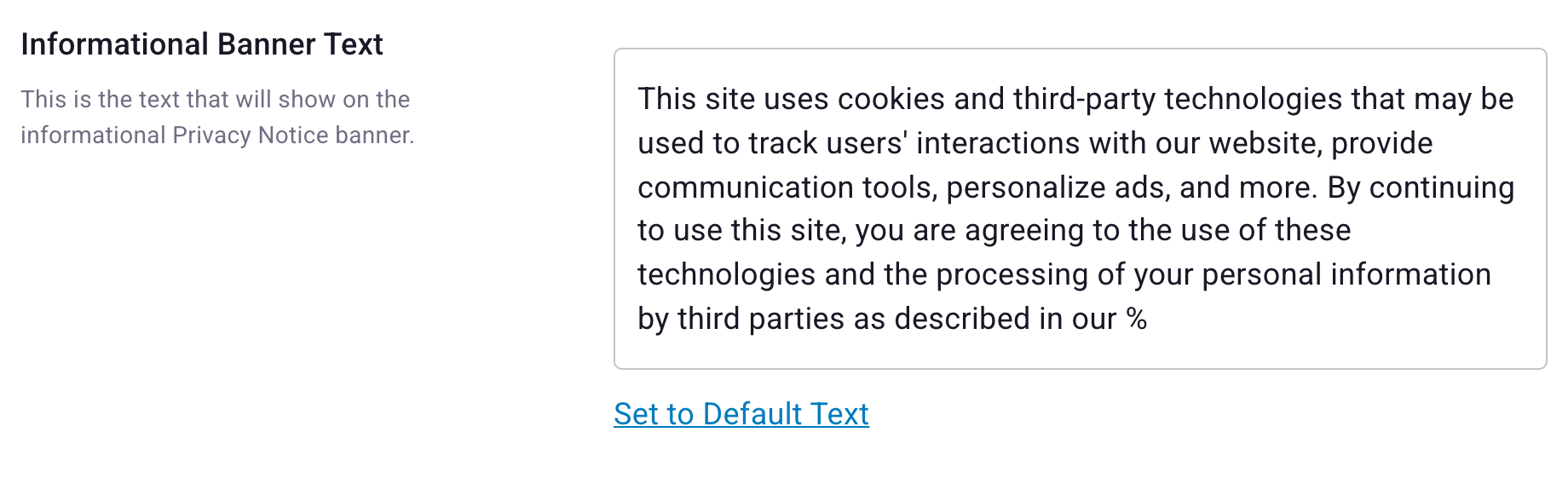
The body copy of the informational notice. This field is required, and Set to Default Text restores TrueVault's suggested wording. If your organization sells or shares personal information and accepts voluntary opt-out requests, the default text includes a one-click opt-out link.
Informational Banner Dismissal
Appears when: a US region uses the informational banner.
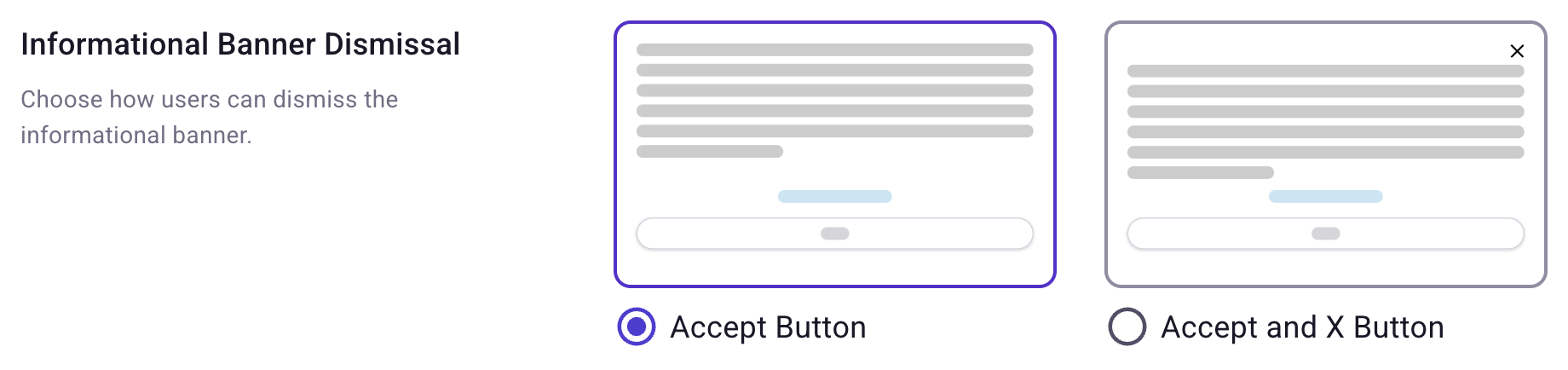
Whether the informational banner can be closed only with its accept button, or also with an X in the corner.
Accept Button Text

Appears when: a US region uses the informational or opt-out banner.
One label, up to 48 characters, shared by two buttons: the informational banner's dismiss button, and the English opt-out banner's accept button. Non-English opt-out banners use TrueVault's translated label. Opt-in banners take their button labels from Opt-In Banner Button Text instead.
Customize Opt-Out Banner Text
Appears when: an opt-out banner is in use — a US region or state override set to opt-out, the Canada Banner, or Global Consent set to opt-out.
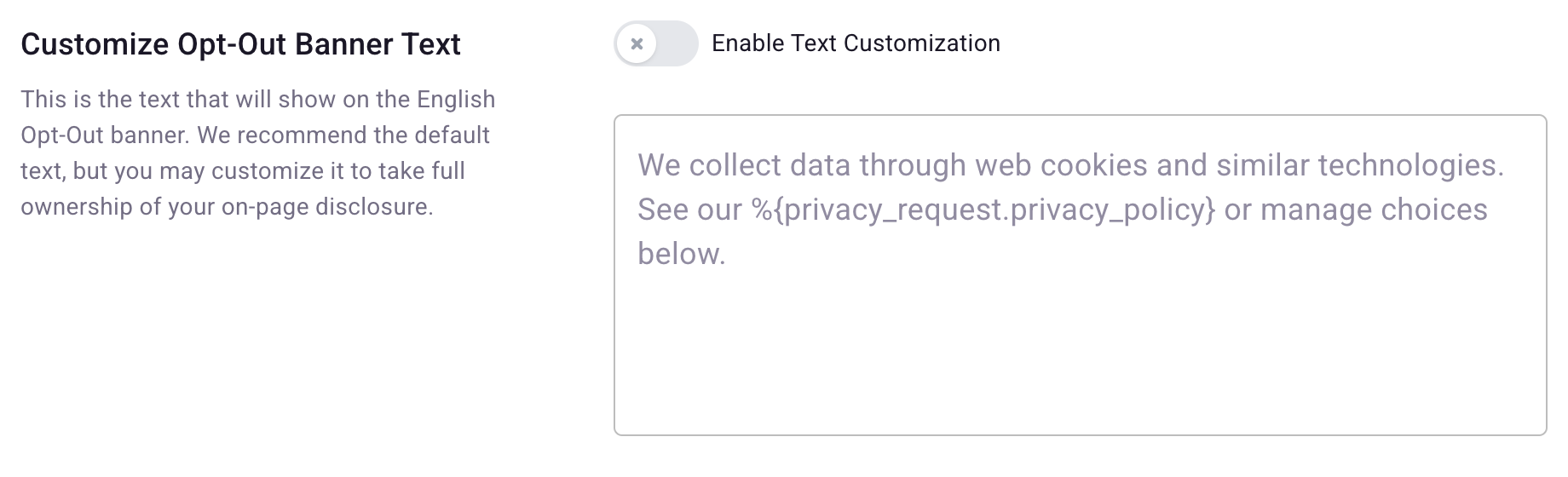
With Enable Text Customization off, the field shows TrueVault's default copy read-only. Turning it on prompts you to confirm that you are taking ownership of your on-page disclosure, then lets you edit the English opt-out copy. Turning it back off discards your text and restores the default.
Customize Opt-In Banner Text
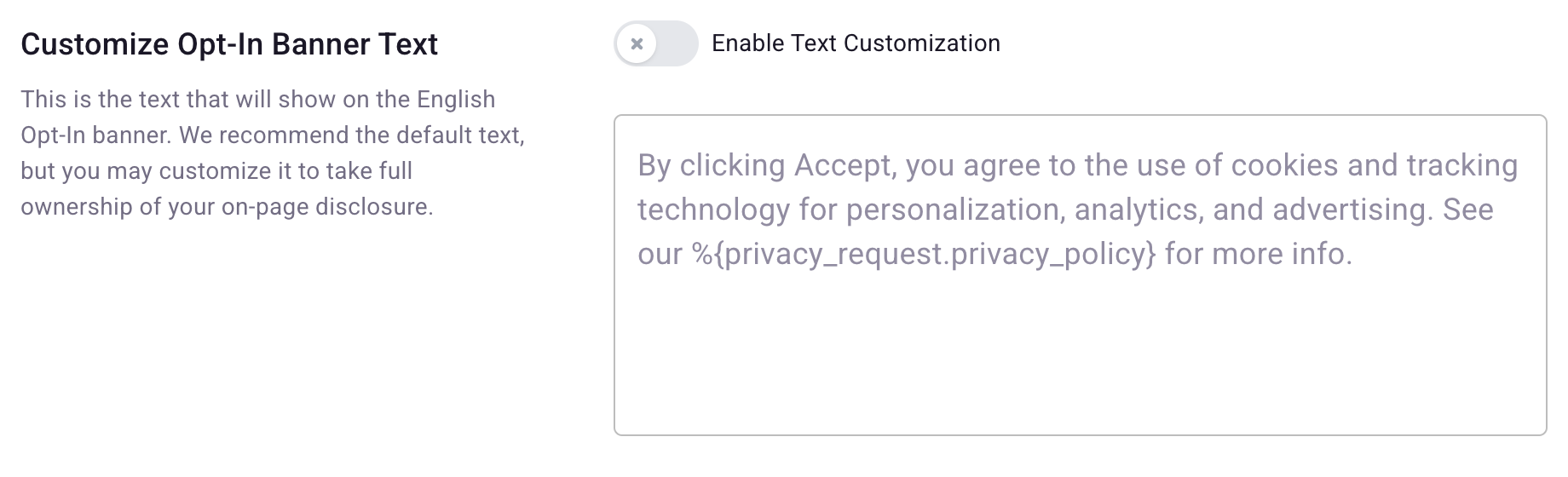
Appears when: an opt-in banner is in use — a US region or state override set to opt-in, the Canada Banner, or Global Consent set to opt-in.
Works exactly like the opt-out field above, for the English opt-in copy. It does not affect the GDPR banner.
Opt-In Banner Button Text

Appears when: an opt-in banner is in use.
Chooses between two fixed sets of button labels for the opt-in banner:
- Manage / Decline / Accept (default)
- Customize / Strictly Necessary / Accept All
This applies to non-GDPR opt-in banners only.
Preference Screen Dismiss Button

Appears when: a US opt-in or opt-out banner, the Canada Banner, or an interactive Global Consent banner is configured.
The label on the button that closes the Manage Preferences screen: Done (default) or Close. It is a labeling choice only — toggling a consent purpose takes effect immediately, whichever label you pick.
Preferences Screen Disclaimer Text
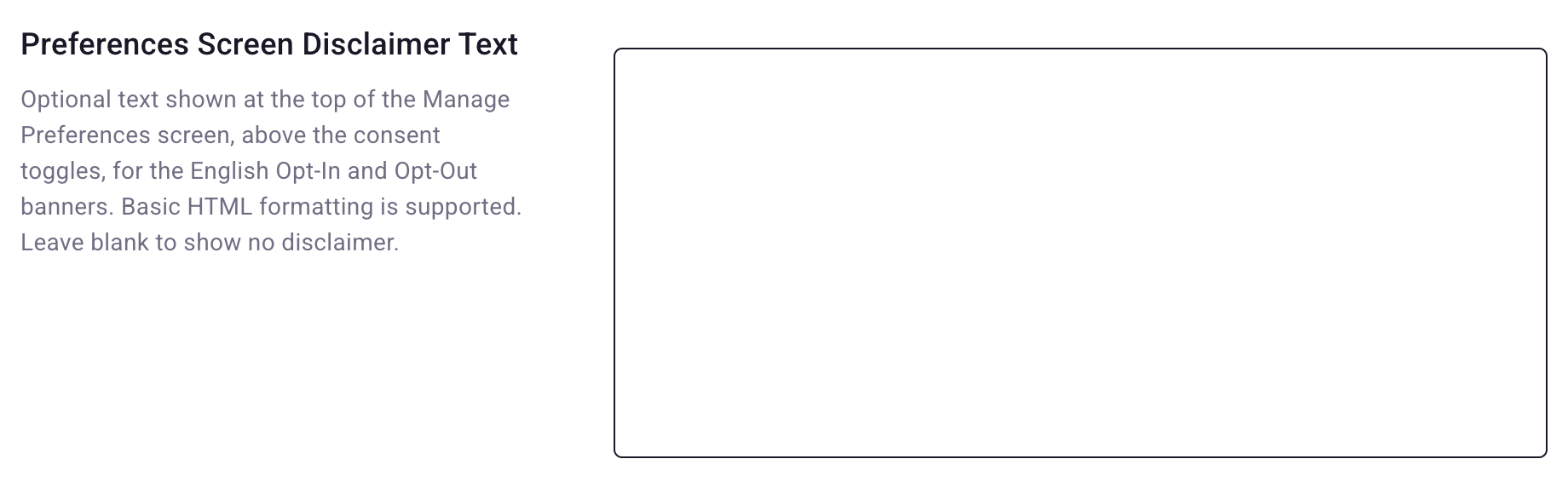
Appears when: your organization has the CMP Preferences Disclaimer feature enabled and Preference Screen Dismiss Button above is showing.
Optional copy shown at the top of the Manage Preferences screen, above the consent toggles. It supports basic HTML formatting and the privacy policy placeholder. Leave it blank to show no disclaimer. Like the other custom copy, it appears on the English opt-in and opt-out screens only, never on the GDPR screen.
Behavior settings
Appears when: at least one banner of any type is configured, including a US informational banner.
Require Consent Choice
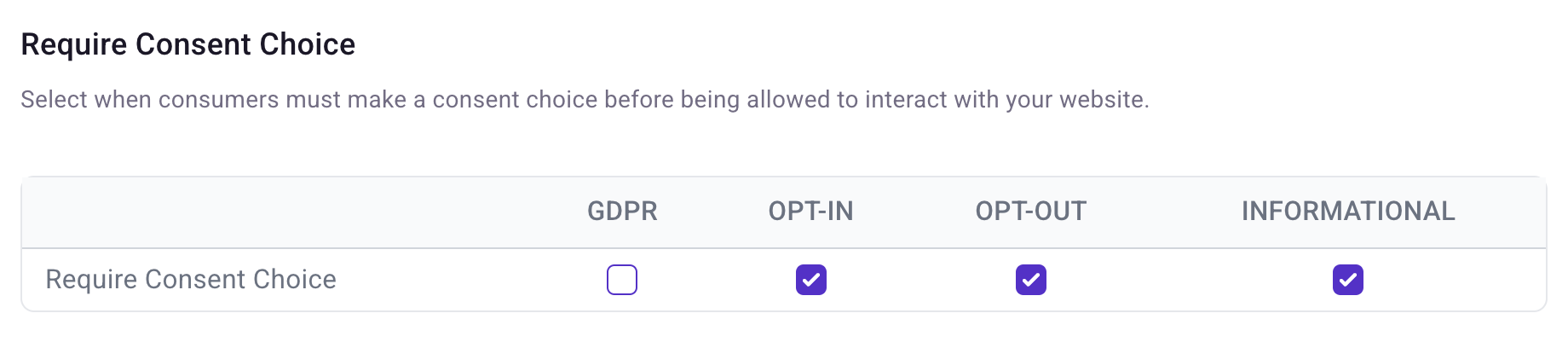
Blocks scrolling and clicking on the rest of your site until the visitor responds to the banner, and removes the banner's close button. Check the banner types it should apply to.
The GDPR column governs banners shown in EEA/UK/CH. The Opt-In column applies only to opt-in banners outside those regions, so checking one does not imply the other.
This is not a legal requirement and it can be a significant obstacle for shoppers, so the first time you check any box the page asks you to confirm.
Allow Custom Styles

By default the banner renders inside a shadow DOM, which isolates it from your site's stylesheets so it looks and behaves consistently. Enabling this setting renders it in the regular DOM instead, so your own CSS can reach it.
Only enable it when your team is actually applying custom CSS — see Customize Consent Manager Widgets for the available selectors and CSS variables. TrueVault's default banners are designed to avoid dark patterns; restyling them is your responsibility. The page shows this warning before letting you turn the setting on.
Testing and publishing
Appears when: at least one banner of any type is configured.
Preview URL

The page on your site that the region previews open. TrueVault pre-fills this by stripping privacy. from your privacy center URL when it can. Enter the host without a protocol; a pasted http:// or https:// prefix is removed automatically.
Preview

Select a flag to see your current, unpublished settings on your own site as a visitor from that region would: the US flag forces California, and the other two force Canada and the UK. Flags for regions without an enabled banner are greyed out.
The preview takes about ten seconds to build, after which a View Preview button opens your preview URL with #polaris_preview=true appended. Opening a preview clears the consent cookies in that browser, so switching between regions does not carry a saved choice from one to the next.
Staging Banner
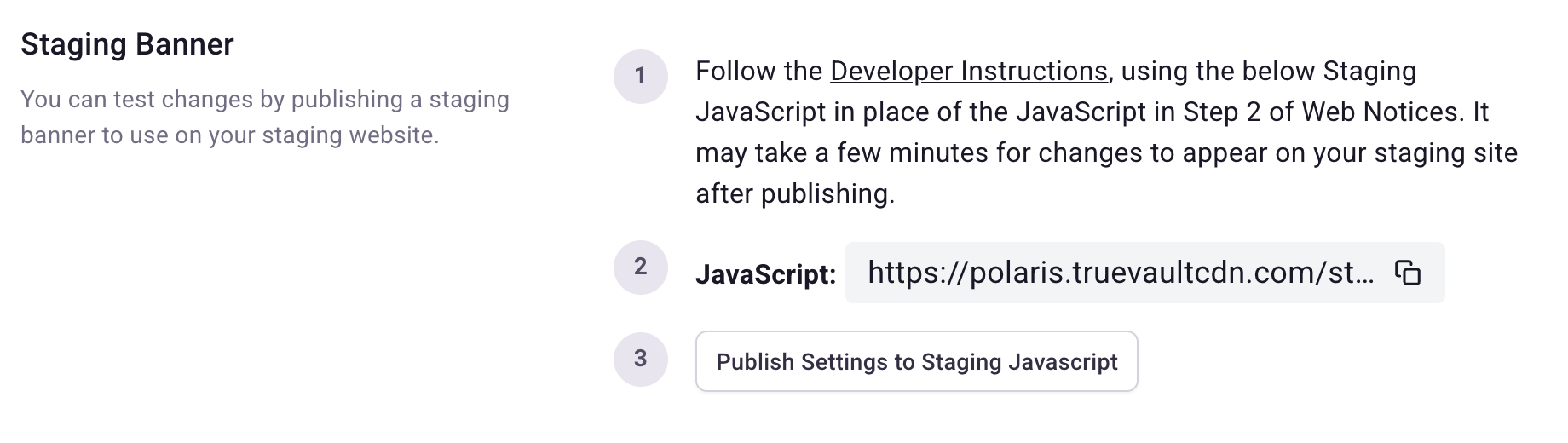
Publishes your current settings to a separate staging build of polaris.js. Use the staging URL in place of the production script on your staging site — see Getting Started for where that script goes — then select Publish Settings to Staging Javascript whenever you want to push new settings to it. Changes can take a few minutes to appear.
Publishing
Previews and staging publishes are written to a separate draft configuration, so neither changes what your visitors see. Only Publish Changes updates the live banner.
Publishing is blocked until every visible region row has a banner type selected. If any are missing, the page names them.
Compare the banners on our live demo site
If you want to see what each setting does and how the different banners look on a live tester site before configuring your own banner, check out MightyVault. MightyVault is a TrueVault demo storefront running a real banner. Its control bars let you switch between banner types and locations without changing anything in your own account:
- US Banner — switch between Informational, Opt-Out, Opt-In, and None to compare the banner types described in Types of Consent Banners. You can also link straight to one, such as the opt-in banner.
- Location — simulate a visitor in California, Texas, New York, the EU, Canada, or Quebec, which is the quickest way to see the GDPR banner and the Quebec-versus-rest-of-Canada difference described under Canada Banner.
- International Banners — show or hide the language selector that appears on non-US banners.
- Debug — turn on Polaris debug logging so you can follow the region and banner type decisions in your browser console.
Switching banner type or location clears the stored consent cookies and reloads, so each combination starts fresh.
MightyVault is an internal demo rather than a polished product page, and its configuration is not connected to yours. Use it to understand behavior, and use Preview or the Staging Banner above to check your own settings.
What the banner settings do not configure
These settings control what the banner shows and what consent state it records. They do not categorize the scripts on your site or decide which tags require which signal. Complete the integration for the system that loads your tags: