Check Which Scripts Are Loading with Tag Explorer
Tag Explorer is a free Chrome browser extension that lists the marketing and analytics tags loading on any page of your website. After you have set up consent management in Google Tag Manager, use it to confirm that tags stop loading when a visitor declines consent — and to spot third-party scripts you haven't categorized yet.
Prerequisites
Before testing, make sure you've completed:
- Setup TrueVault CMP Template
- Configure Consent Requirements — Match tags to consent signals
- Add "Consent Changed" Event
Install Tag Explorer
- Open the Tag Explorer page in the Chrome Web Store.
- Click Add to Chrome, then Add extension.
- Pin the extension so its icon is visible next to the address bar.
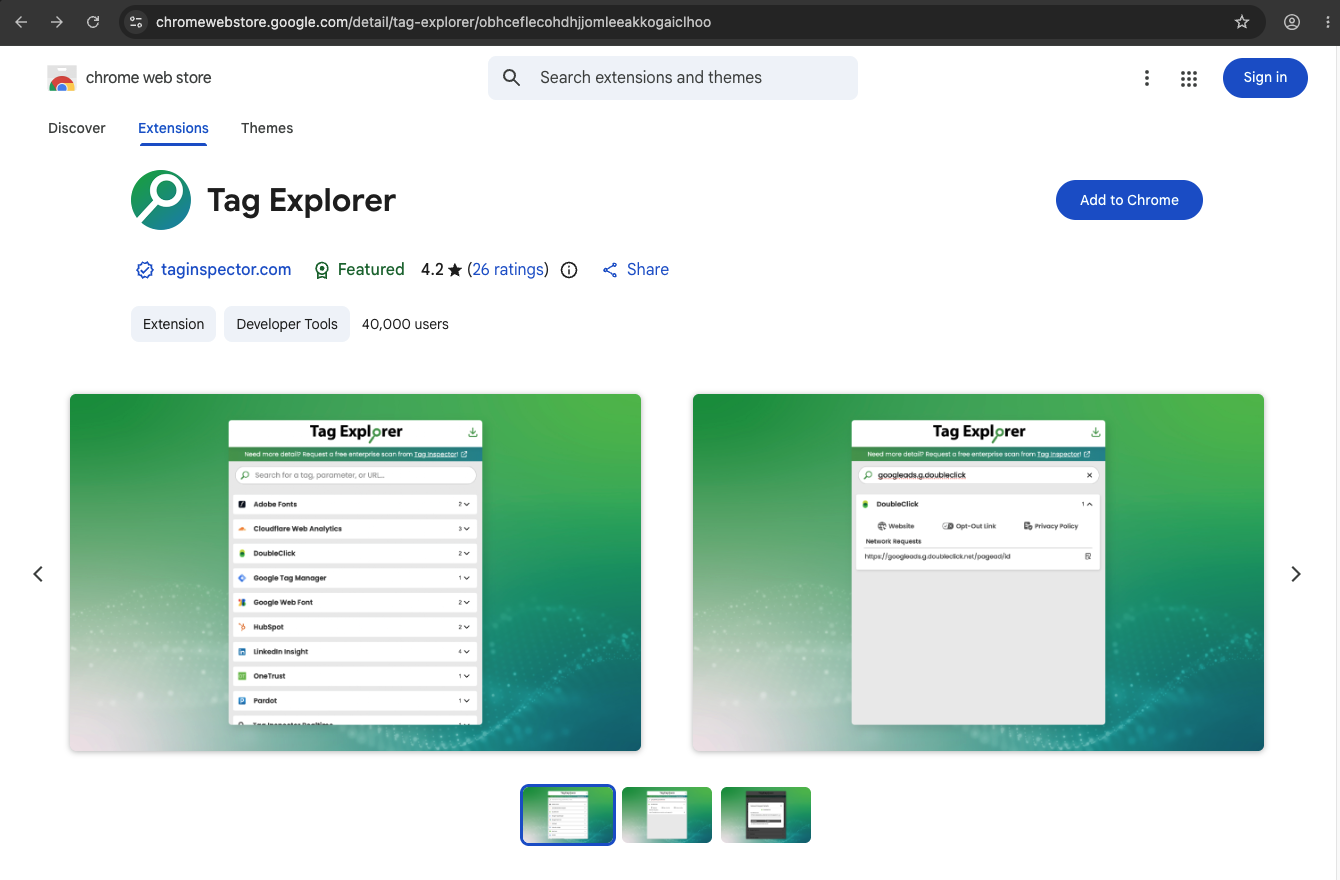
Check Which Scripts Load
Tag Explorer lists the scripts that loaded when the page loaded, so what you should expect to see depends on which banner type your organization uses.
If you use an Opt-In banner
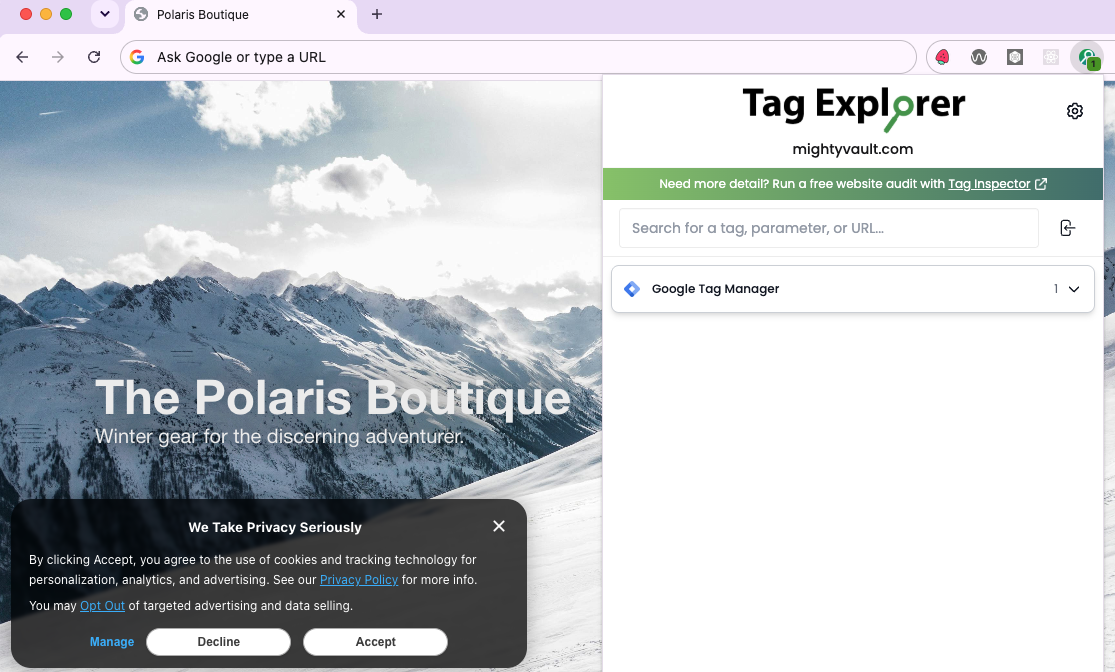
With an opt-in banner, no consent-requiring tags may fire until the visitor accepts.
-
Open a new Incognito window (so previous consent choices and cached scripts don't affect the result) and go to your website.
-
Leave the TrueVault banner unanswered and click the Tag Explorer icon.
-
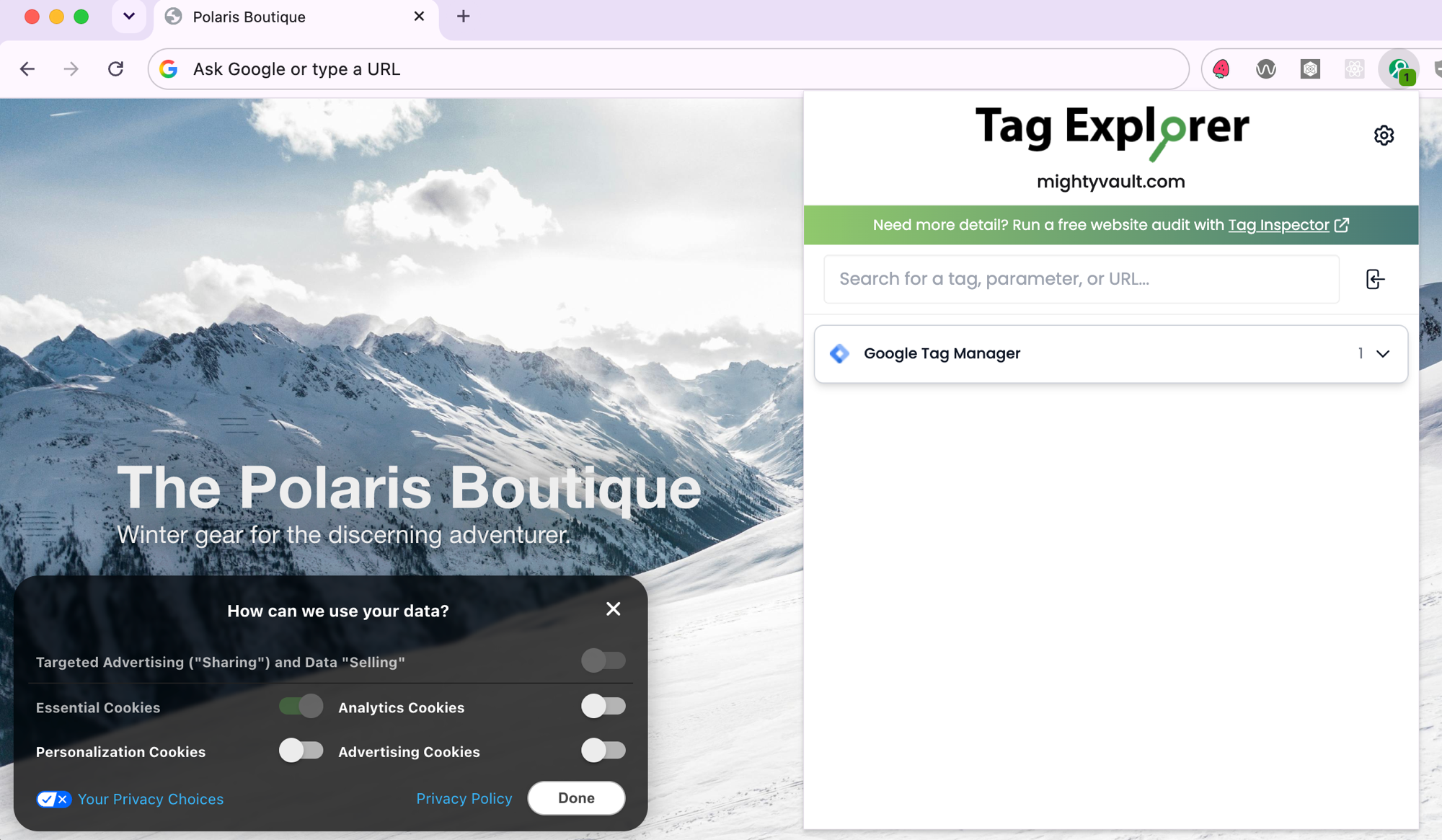
Review the list. Tags you categorized as requiring consent — Advertising, Analytics, or Personalization — should not appear on the initial page load. Only essential scripts should be listed.
-
Accept consent on the banner, refresh the page, and open Tag Explorer again to confirm the expected tags now load.
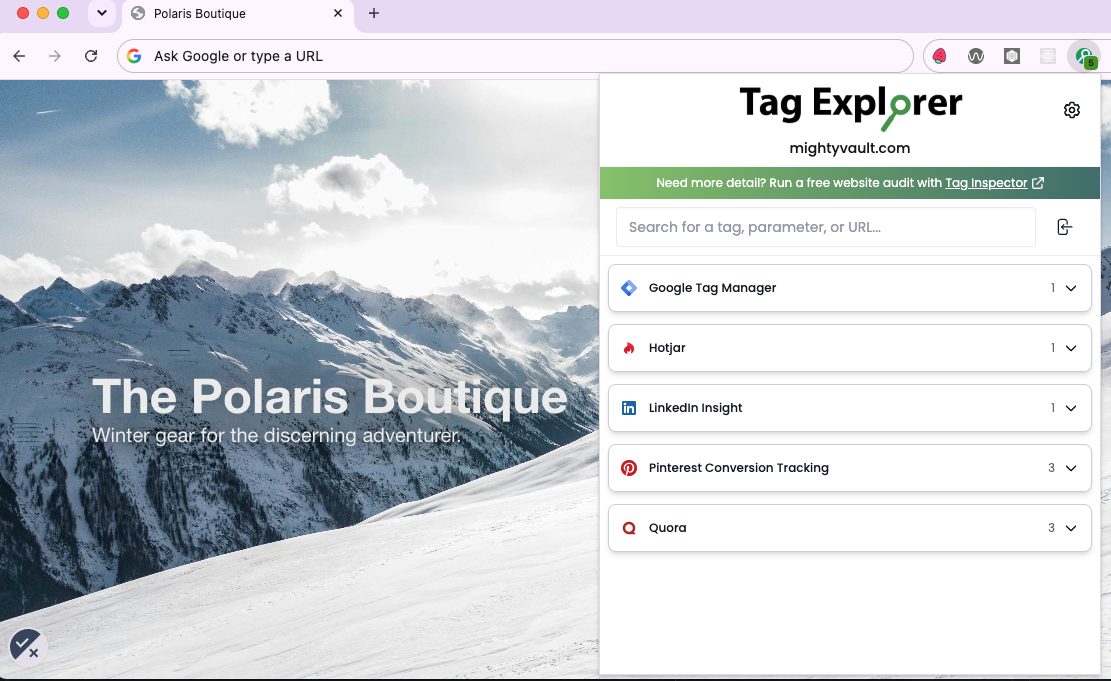
Because of the Consent Changed event, any scripts you've set up to listen for that event will load immediately when the visitor accepts — no refresh needed for those. A refresh is still the best way for Tag Explorer to get a full picture of the scripts that load on first page load.
If you use an Opt-Out banner
With an opt-out banner, visitors start with consent, so consent-requiring tags will appear on the initial page load. They should stop loading after the visitor opts out.
-
Open a new Incognito window and go to your website.
-
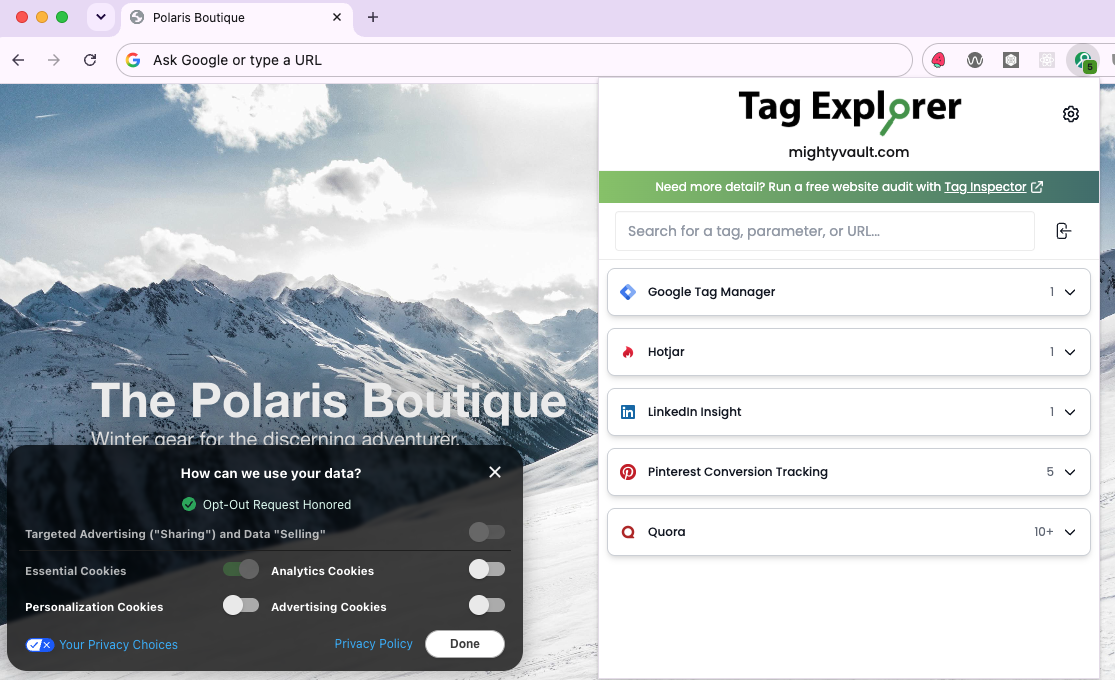
Decline tracking using the TrueVault banner (or toggle all optional purposes off and save). At this point Tag Explorer still lists everything that loaded with the page's initial consent state.
-
Refresh the page. This step matters: Tag Explorer shows the scripts that loaded when the page first loaded — before you opted out — so you need a fresh page load to see the effect of your choice.
-
Click the Tag Explorer icon and review the list. Tags you categorized as requiring consent should no longer appear.
Reading the Results
- A tag you expected to be blocked still loads — its GTM Consent Settings don't require the right signal. Open the tag in GTM, go to Tag Configuration → Advanced Settings → Consent Settings, and add the required consent (
ad_storage,analytics_storage,personalization_storage, ortv_not_opted_out— see US & Canada Opt Outs). Publish the container and re-check. - A tag you don't recognize loads — identify the vendor and categorize it in GTM before assuming it's a problem. Scripts installed directly in your site's HTML bypass GTM entirely; see Consent Management without Google Tag Manager for how to gate them.
- Google tags (GA4, Google Ads) still load after declining — by default these switch into Google's limited-data-use Consent Mode rather than not loading at all. If your compliance posture requires that the request not fire, add Additional Consents Required to the tag in GTM.
Shopify App Pixels are sandboxed by Shopify and will appear to load in Tag Explorer (and in the browser's network tab) even when they are correctly waiting for consent. Don't use Tag Explorer to judge Shopify pixel behavior — use the Shopify Pixel Helper instead, as described in Shopify App Pixel Consent.
Related Guides
- Testing your Google Tag Manager Setup — verify the consent signal handoff between the banner and GTM using Tag Assistant.
- Shopify App Pixel Consent — testing pixels inside Shopify's sandbox.
- Consent Management without Google Tag Manager — gating scripts that aren't delivered through GTM.