Types of Consent Banners
TrueVault can show a different consent banner based on a visitor's location. The active banner type determines the visitor's initial consent state, the choices shown on the banner, and whether the visitor can manage individual consent purposes.
Your organization's regional configuration determines which banner type a visitor sees. The example regions in this article illustrate one test configuration; a particular state or country does not always map to the same banner type for every organization.
This article describes how the banner types behave in TrueVault. It is not legal advice about which banner type your organization should use. Work with your privacy or legal team when configuring regions.
Comparison
| Banner Type | Initial optional-consent state | Primary banner actions | Individual purpose choices | Closing without changing purposes |
|---|---|---|---|---|
| GDPR | Denied | Manage, Decline, Accept | Yes | No close button |
| Opt-in | Denied | Manage, Decline, Accept | Yes | Leaves optional purposes denied |
| Opt-out | Granted | Manage, Okay | Yes | Leaves optional purposes granted |
| Informational | Granted | Okay; optional close button | No | Records that the notice was dismissed |
Essential cookies remain permitted in every banner type. “Granted” and “denied” in the table refer to optional purposes such as analytics, personalization, and advertising.
The GDPR, opt-in, and opt-out banners are interactive. After the banner closes, visitors can reopen the preferences screen with the floating cookie button (shown by default) or a cookie settings link. The informational banner does not provide a purpose-preferences screen.
Compare different banner types live
MightyVault is a TrueVault demo storefront running a real banner. Use its US Banner control bar to switch between the informational, opt-out, and opt-in banners, and its location control bar to simulate a visitor in the EU, Canada, or Quebec and see the GDPR banner. You can also link straight to one, such as the opt-in banner.
Switching banner type or location clears the stored consent cookies and reloads, so each banner type starts fresh. MightyVault is an internal demo rather than a polished product page, and its configuration is separate from yours — to check your own settings, use the Preview and Staging Banner tools described in the Banner Settings Reference.
GDPR
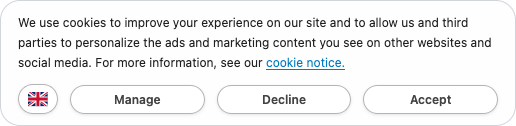
The GDPR banner starts with analytics, personalization, and advertising denied. Those purposes remain denied until the visitor grants them. The visitor can:
- Select Accept to grant every optional purpose.
- Select Decline to keep every optional purpose denied.
- Select Manage to choose purposes individually.
The banner does not have a close button, so it remains visible until the visitor uses one of these actions. The GDPR experience uses localized GDPR-specific copy and links to the organization's Cookie Notice. Its preferences screen does not show the North American Targeted Advertising choice or Your Privacy Choices link.
Opt-in
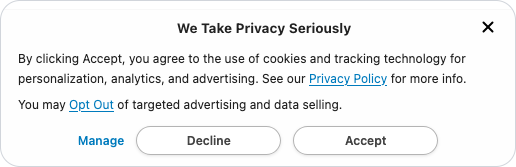
Like the GDPR banner, the opt-in banner starts with optional purposes denied and offers Manage, Decline, and Accept. Consent-requiring tags should not run until the visitor grants the corresponding purpose.
Unlike the GDPR banner, the standard opt-in banner has a close button. Closing it keeps optional purposes denied. Your organization can instead require visitors to make a choice, which removes the close button and prevents interaction with the rest of the page until they respond.
The opt-in banner uses the configurable non-GDPR banner title and body copy. In North American regions, the preferences screen can also show Targeted Advertising and Your Privacy Choices when they apply to the organization's configuration, and a "GPC Signal Honored" indicator for visitors with a GPC signal.
Opt-out
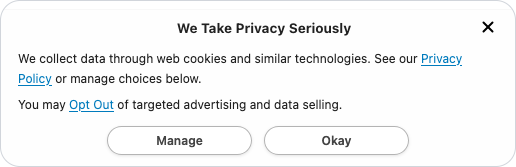
The opt-out banner starts with analytics, personalization, and advertising granted. Selecting Okay or closing the banner keeps that initial state. The visitor can select Manage to turn off individual purposes and save the updated choices.
Depending on the organization's privacy practices and configuration, the banner or preferences screen can also offer a one-click opt-out from targeted advertising or data sale. TrueVault also honors applicable stored opt-outs and Global Privacy Control signals.
Because consent-requiring tags can run before the visitor changes their choices, an opt-out does not undo requests that already occurred on the initial page load. It prevents correctly configured tags from running on later page loads and consent reevaluations. TrueVault does not automatically delete cookies previously set by third parties.
Informational
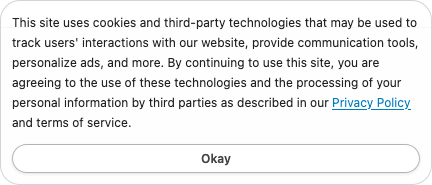
The informational banner displays a notice without asking the visitor to choose analytics, personalization, or advertising purposes. Those optional purposes start granted, and the banner closes when the visitor selects Okay or, when configured, the close button.
Although the informational banner has no purpose-preferences screen, applicable privacy opt-outs still work. For example, the banner can show Your Privacy Choices or a one-click opt-out, and TrueVault continues to honor stored opt-outs and Global Privacy Control signals. Tags involved in selling, sharing, or targeted advertising must be configured to require the appropriate opt-out signal.
What the banner type does not configure
The banner records and communicates the visitor's choices, but it does not automatically categorize every script on your site or decide which tags require each signal. Complete the integration for the system that loads your tags:
For GTM, see Configure Consent Requirements to map each tag to the correct consent signal. When testing, use a new private browsing session for each region so a saved choice from one banner type does not affect another.
Visual styling
Choosing a banner type controls its consent defaults and available actions, not its visual styling. The default presentation does not visually favor accepting over declining, or declining over accepting. This neutral treatment helps avoid pressuring visitors toward a particular choice. To change colors, typography, positioning, and other appearance settings, see Customize Consent Banner Widgets. For guidance on avoiding designs that pressure visitors, see Cookie Banner Design.