Automation: Zendesk Integration Setup
Text Guide
Zendesk has a few values that you'll need to record. For each bold item below, copy the value somewhere safe like a password manager and label it to make it easy to track.
- Log in to your Zendesk account as an admin and note your account Subdomain (the
your-companyportion ofyour-company.zendesk.com) - Open
Admin Center:
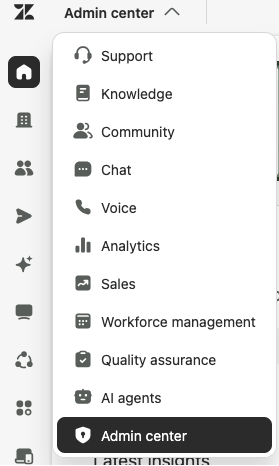
- Open
Apps and integrations -> APIs -> OAuth clients- Click
Add OAuth client - Enter a
Client namesuch asTrueVault Polaris(this name is only used to identify the client in your OAuth clients list) - Set the
Client kindtoConfidential - Copy the Unique identifier — this is the Client ID
- Click
Save - Copy the Client Secret shown
- This is the only time the full secret will be shown in Zendesk
- Click
- Navigate to the Integrations page in Polaris and click
Connectfor Zendesk - Click
Connectin the popup and enter the following values that you copied earlier:- Subdomain
- Client ID (the Unique identifier)
- Client Secret
- Close the connection popup
Validating the Integration
To verify a deletion request in Zendesk, log in to your Zendesk account and search for the consumer in question in your end-user list. Observe that the user can no longer be found, having been deleted from your Zendesk account.
- Note that deletion removes the consumer's user profile only. Their correspondence (tickets and messages) is not deleted.
- All of a consumer's tickets must be Solved or Closed before they can be auto-deleted. If a consumer has open tickets, deletion will not succeed - those tickets must be moved to a resolved state and then automation can be retried.