Mobile Apps (React Native Guide)
TrueVault's cross-platform consent APIs can power a native opt-out experience for Shopify merchants and custom apps. The React Native Sample SDK shows how to query stored preferences, react to opt-out state, and re-open the prompt on demand using the same API contract described in the Shopify and email provider guides. This page highlights the opt-out-only workflow implemented in that sample. Need the complete source files to drop into your app? Jump to the SDK reference →
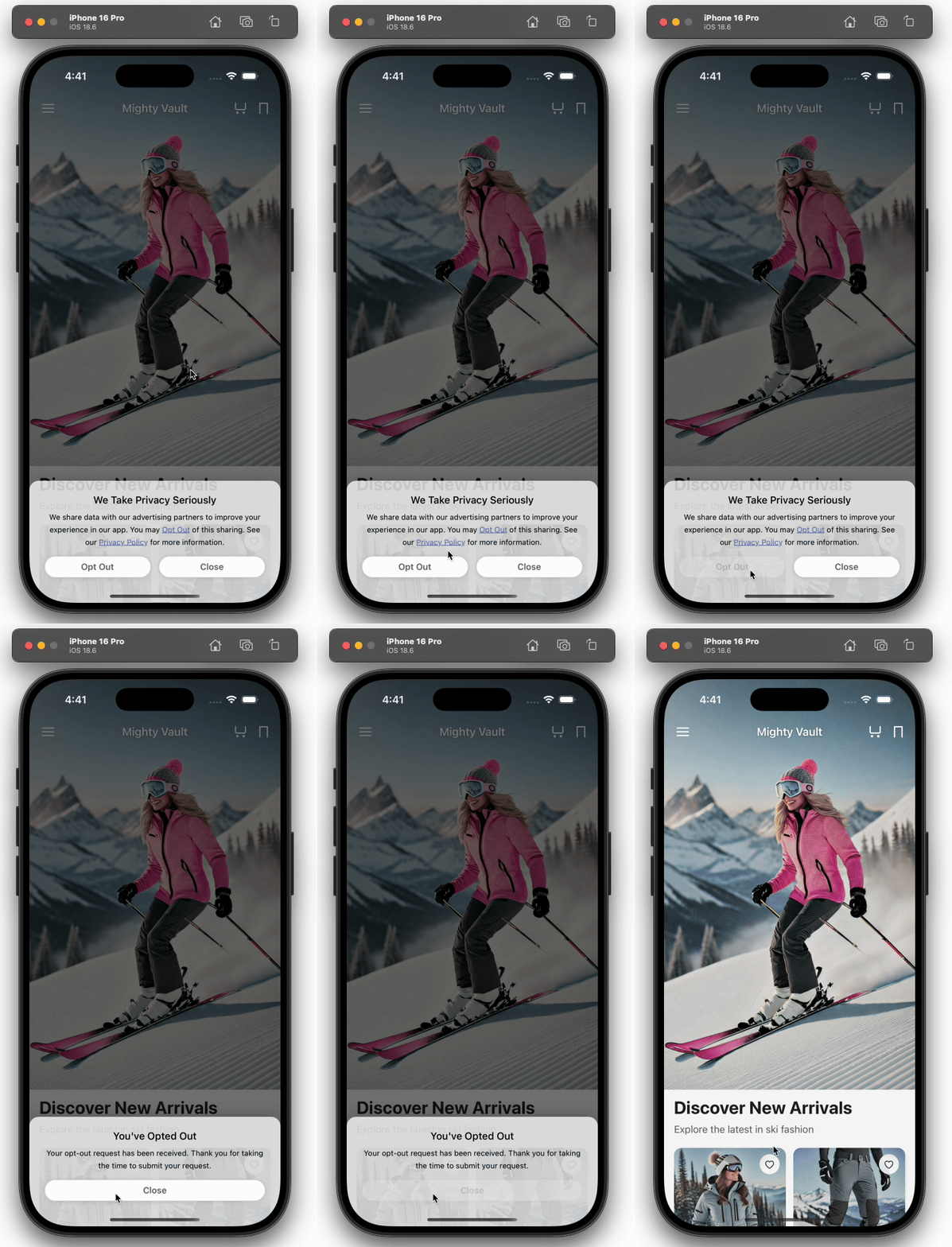
SDK building blocks
The sample SDK exports:
consentManager(sdk/ConsentManager.ts) – wraps the GET/POST API calls and tracks state.useConsent(sdk/useConsent.ts) – React hook that subscribes to consent state updates.OptOutBanner(sdk/OptOutBanner.tsx) – modal opt-out banner that can be shown automatically or on demand.
The snippets below illustrate three important workflows for consent management.
1. Configure the provider and query consent
Shopify Customer IDs are the preferred identifiers for consumers, as using them will link the consumer's opt-out preference on the Web with their mobile opt-out preference. Configure the SDK with those identifiers before you call initialize():
import { consentManager } from './sdk';

useEffect(() => {
  consentManager.updateConfig({
    endpointUrl: 'https://consent.truevault.com/api/v1/cmp/consent',
    provider: 'shopify',
    shop: shopDomain, // Your store URL, e.g. mighty-vault.myshopify.com
    privacyCenterId, // Your privacy center ID from TrueVault, e.g., ABC1234
    customerId: loggedInCustomerId, // Shopify Customer ID of the logged-in user
    clientId: deviceId, // Optional UUIDv4 to attribute consent to a specific device
  });

  consentManager.initialize();
}, [shopDomain, privacyCenterId, loggedInCustomerId, deviceId]);
If you don't have access to the Shopify Customer ID, use the email provider instead (i.e., consentManager.updateConfig({ provider: 'email', customerEmail: 'me@example.com', /* ...other fields above */ })). This approach still enables cross-platform consent outside the Shopify Web experience, as the CMP linkage relies on the Shopify customer ID.
initialize() performs an initial GET request to retrieve consent preferences for the specified consumer, hydrates the JWT with which you can update consent preferences, and updates the optedOut flag so your app can decide whether to show a banner and control 3rd party scripts to reflect the consumer's preferences.
2. Show the opt-out banner and react to state
If the SDK returns optedOut === null (or the field is missing), you can display the opt-out banner. Other values indicate a consumer has made an explicit opt-out decision and should not be re-prompted. If a banner is shown after an opt-out preference has been indicated, confirmation messaging should be shown if the user is already opted out (the example banner in the SDK implements this behavior).
import { useConsent, OptOutBanner, consentManager } from './sdk';

const consentState = useConsent();
const [showOptOutBanner, setShowOptOutBanner] = useState(false);

useEffect(() => {
  if (!consentState.isLoading && consentState.consent?.optedOut !== true) {
    setShowOptOutBanner(true);
  }
}, [consentState.isLoading, consentState.consent?.optedOut]);

const handleOptOut = async () => {
  await consentManager.saveConsent({
    consentAnalytics: null,
    consentAdvertising: null,
    consentPersonalization: null,
    consentTargetedAdvertising: null,
    optedOut: true,
  });
};

<OptOutBanner
  visible={showOptOutBanner}
  onOptOut={handleOptOut}
  onAccept={() => setShowOptOutBanner(false)}
  onDismiss={() => setShowOptOutBanner(false)}
  config={{ privacyPolicyUrl: 'https://example.com/privacy' }}
  isOptedOut={consentState.consent?.optedOut ?? false}
  requestId={consentState.submittedOptOutRequestId}
/>;
Because useConsent subscribes to the singleton consentManager, the UI automatically receives the new state after the saveConsent() POST succeeds. Use that hook to react to the opt-out signal anywhere in your tree:
const { consent, submittedOptOutRequestId } = useConsent();

useEffect(() => {
  if (consent?.optedOut) {
    analytics.stopAllCollection();
    adsManager.disableTracking();
  } else {
    analytics.resumeCollection();
  }
}, [consent?.optedOut]);

useEffect(() => {
  if (submittedOptOutRequestId) {
    console.info(`Opt-out confirmed. Request ID: ${submittedOptOutRequestId}`);
  }
}, [submittedOptOutRequestId]);
3. Re-open the opt-out prompt on demand
Apps often expose privacy settings under the account area. The example project wires the OptOutStatus component (src/components/OptOutStatus.tsx) to a "Manage" button that re-opens the OptOutBanner modal when pressed:
const [manageOptOut, setManageOptOut] = useState(false);
const consentState = useConsent();

return (
  <>
    <OptOutStatus onManageOptOut={() => setManageOptOut(true)} />
    <OptOutBanner
      visible={manageOptOut}
      onOptOut={handleOptOut}
      onAccept={() => setManageOptOut(false)}
      onDismiss={() => setManageOptOut(false)}
      config={{ hideOptOutButton: false }}
      isOptedOut={consentState.consent?.optedOut ?? false}
      requestId={consentState.submittedOptOutRequestId}
    />
  </>
);
This pattern allows consumers to revisit their option to opt-out at any time. Currently, we support opting out after having initially dismissed the banner. When showing the banner to an opted-out user, we recommend displaying a simple confirmation message (as illustrated by the sample SDK). A workflow where a user opts back in is not illustrated in the example SDK and is not a recommended practice.
Customize the banner
The OptOutBanner exposes a few configuration options through the config prop:
hideOptOutButton(boolean) removes the prominent button while keeping the inline "Opt Out" text link. This is useful if you want the banner to act purely as a disclosure while still offering an action inside the body copy.privacyPolicyUrl(string) controls the destination of the "Privacy Policy" link. Point this to your TrueVault Privacy Center (e.g.,https://privacy.example.com/) so consumers have an easy way to learn more about your data practices.
Example:
<OptOutBanner
  visible={showOptOutBanner}
  onOptOut={handleOptOut}
  onAccept={() => setShowOptOutBanner(false)}
  config={{
    hideOptOutButton: false,
    privacyPolicyUrl: `https://privacy.example.com/${privacyCenterId}`,
  }}
/>
If you omit hideOptOutButton, the button remains visible. We recommend always providing a privacyPolicyUrl so consumers can easily review your privacy practices.
Bringing it all together
- Setup – configure the SDK with your Shopify shop (
provider: 'shopify') and Shopify Customer ID (customerId) whenever you have a logged-in customer. Useprovider: 'email'andcustomerEmailfields instead if you prefer email identifiers as the consumer anchor. - Query consent – call
consentManager.initialize()to retrieve a JWT plus the latestoptedOutvalue from the Consent API. - Show opt-out UI – leverage the
OptOutBannerto prompt the consumer, and reuse it later for manual "Manage privacy" flows. - React to changes – subscribe via
useConsentand disable analytics/ads the momentoptedOut === true(whether that came from the initial GET or a new POST).
To get started, continue to the React Native Sample SDK for source files that demonstrate implementing the above workflows. For more technical detail, continue to the Consent API reference.