Google Workspace (Google Groups)
This guide shows how to set up your privacy@company.com domain for email forwarding in your Google Workspace using Google Groups.
If the email address already exists this only affects new messages going forward; it does not import historical mail already in the group.
Forwarding addresses are unique per organization. Copy the exact value from Account Settings > Domain in your TrueVault app. It will look like inbound@dx5jjyde5.mx.truevault-app.com, where dx5jjyde5 is specific to your organization.
Prerequisites
- Google Workspace Admin user (or user who has control to manage Google Groups)
Setup
- Log in to Google Workspace Admin.
- On the left, expand Directory, then select Groups.
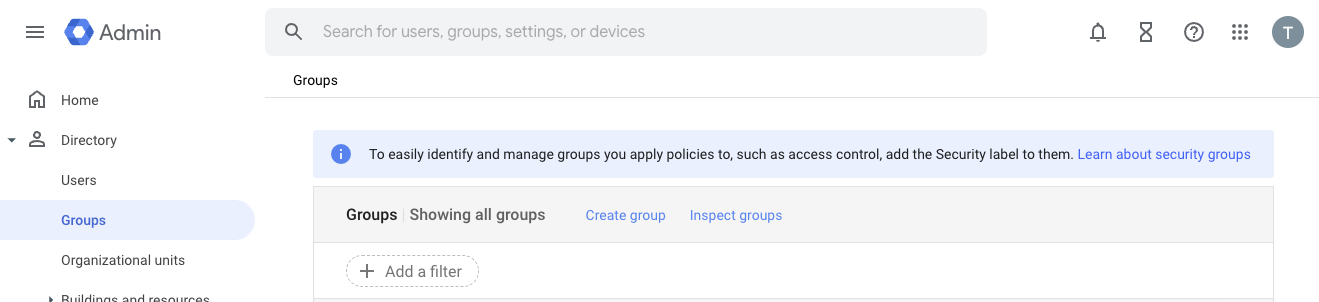
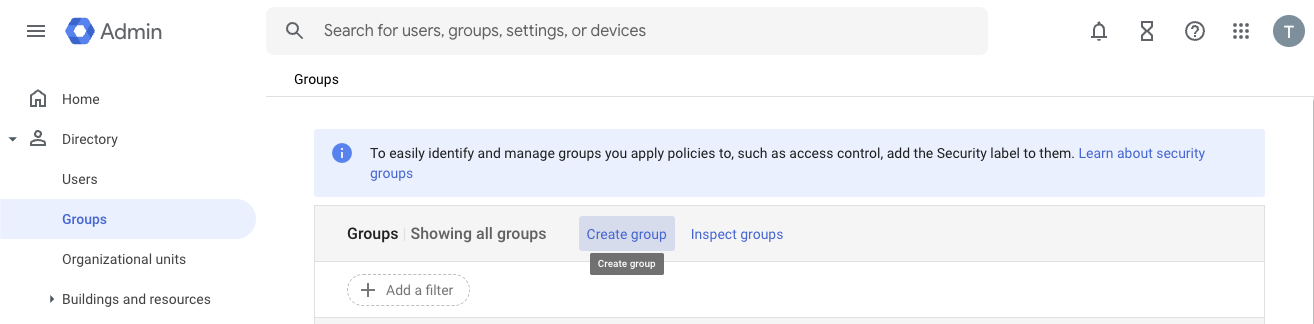
- Click Create group.
- On Group details, fill in the following:
Group name:
Privacy Inbox - TrueVault
Group email:
privacy
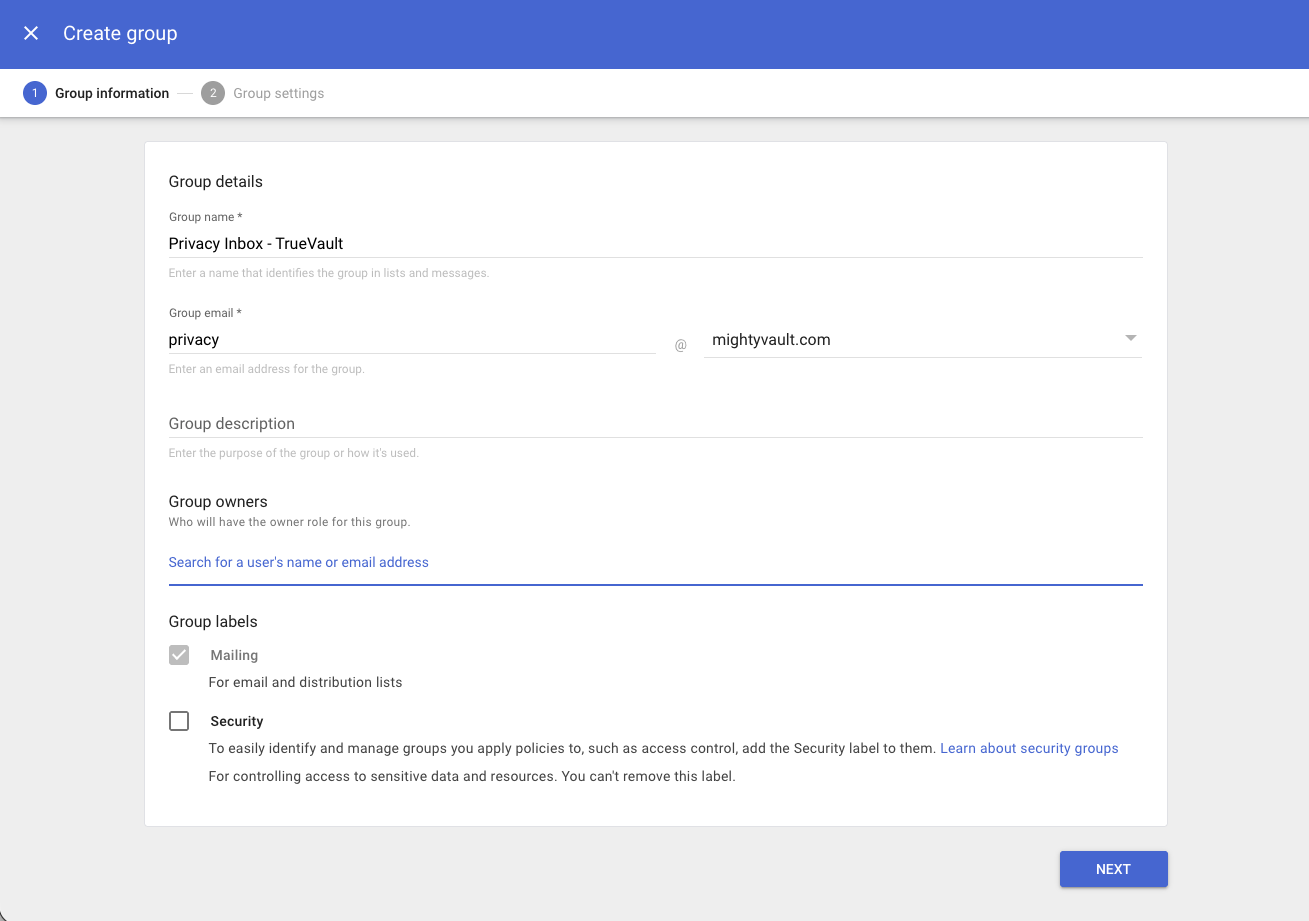
- Click Next.
- Update the Group settings to match this screen. The key one to add is External -> Who can post (make sure it is selected).
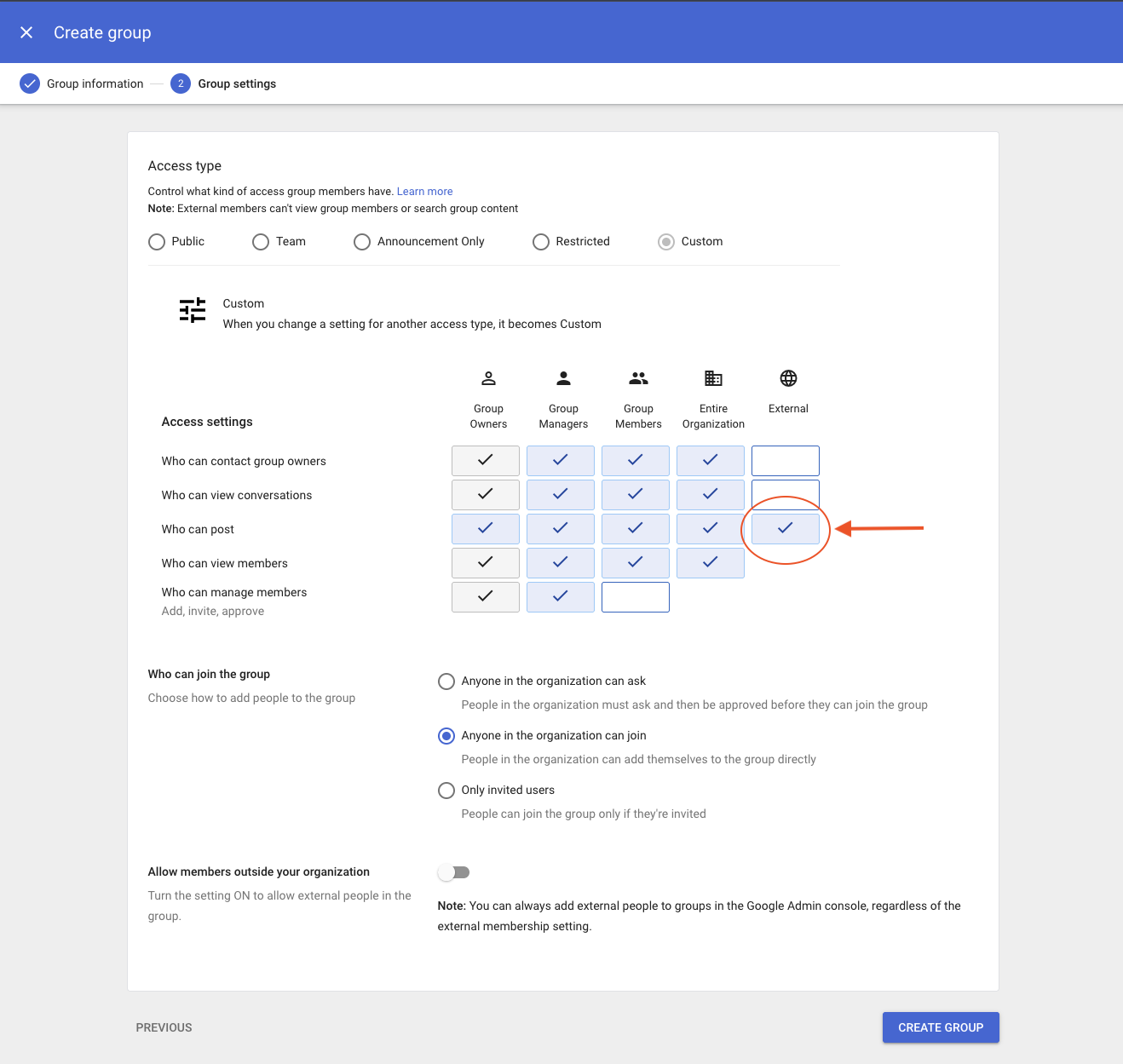
- Click Create Group, then click Done.
It can take a few minutes for the new group to load. If you don't see it right away, refresh the page and try again.
- Select the group.

- In the TrueVault app, copy your forwarding address from Account Settings > Domain.
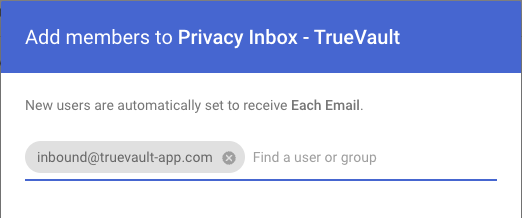
- Click Add members, paste that forwarding address, then click Add to Group.
- You're all done! Return to the TrueVault app and complete the next steps there.