Microsoft 365 (Microsoft 365 Groups)
Overview
Use a Microsoft 365 Group address (for example, privacy@yourcompany.com) to route group mail into TrueVault by:
- Allowing the group to accept messages from external senders.
- Creating a mail flow rule to redirect group mail to TrueVault.
Prerequisites
- You have access to the Exchange admin center with permission to manage groups and mail flow rules.
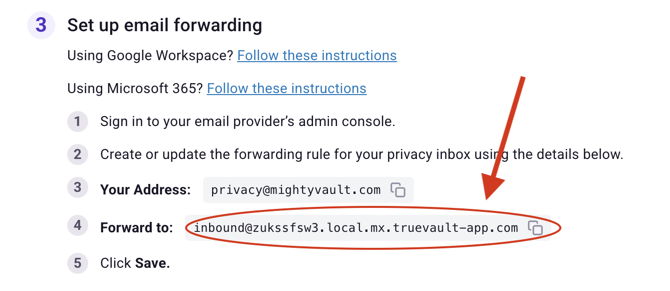
- You have your organization-specific TrueVault forwarding address from step 3 on either the Account Settings > Domain page or the Onboarding Domain Setup page in the TrueVault app.
Configure The Microsoft 365 Group
- Open the Exchange admin center.
- Go to Recipients -> Groups.
- Select the Microsoft 365 Group you want to use.
- In Members, ensure an admin you control is added as an Owner (owners are required to manage certain group settings).
- In Settings, enable Let people outside the organization email this group.
Create A Mail Flow Rule To Redirect To TrueVault
Forwarding addresses are unique per organization. Copy the exact value from step 3 on either the Account Settings > Domain page or the Onboarding Domain Setup page in your TrueVault app. It will look like inbound@dx5jjyde5.mx.truevault-app.com, where dx5jjyde5 is specific to your organization.
-
In the Exchange admin center, go to Mail flow -> Rules.
-
Create a new rule with a condition matching mail sent to the group address:
- Example condition: The recipient is...
privacy@yourcompany.com
- Example condition: The recipient is...
-
Add an action to redirect the message to TrueVault:
- Redirect the message to... (or Bcc the message to...) the forwarding address copied from step 3 on either the Account Settings > Domain page or the Onboarding Domain Setup page.
-
Save and enable the rule.
Optional: Avoid Duplicate Delivery To Teammates
If you want messages sent to the group to only land in TrueVault (and not also be delivered to individual users), disable:
- Send copies of group conversations and events to group members