Google Workspace (Default Routing)
This guide shows how to set up your privacy@company.com domain for email forwarding in your Google Workspace using Default Routing.
If the email address already exists this only affects new messages going forward; it does not redirect historical mail.
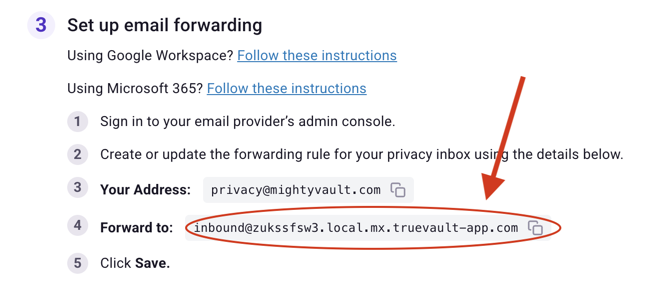
Forwarding addresses are unique per organization. Copy the exact value from step 3 on either the Account Settings > Domain page or the Onboarding Domain Setup page in your TrueVault app. It will look like inbound@dx5jjyde5.mx.truevault-app.com, where dx5jjyde5 is specific to your organization.
Prerequisites
- Google Workspace Admin User
Configure Default Routing
-
In the Google Admin console, go to:
Go to Default Routing Menu
Menu
 AppsGoogle WorkspaceGmailDefault routing
You need the Gmail Settings administrator privilege.
-
Click Configure. To add a rule when Default routing is already configured, click Add another rule.
-
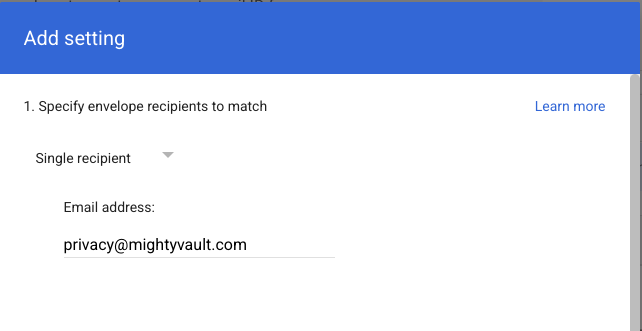
In the Add setting box, under Specify envelope recipients to match, select Single recipient and enter your public privacy address, such as
privacy@company.com.Important: Be sure this email address you is not an actual Google Workspace account. It shouldn't have an associated user account, mailbox, or Groups membership. To support delivery of large volumes of outgoing mail, the email address should exist only in this Default routing rule.
-
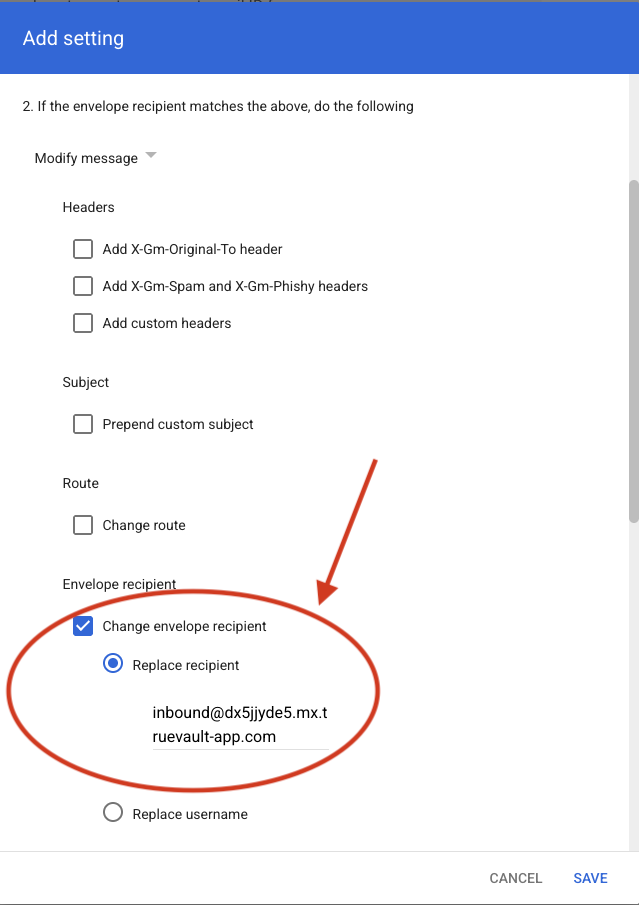
Under 2. If the envelope recipient matches the above, do the following, complete the following:
-
In the TrueVault app, copy your forwarding address from step 3 on either the Account Settings > Domain page or the Onboarding Domain Setup page.
-
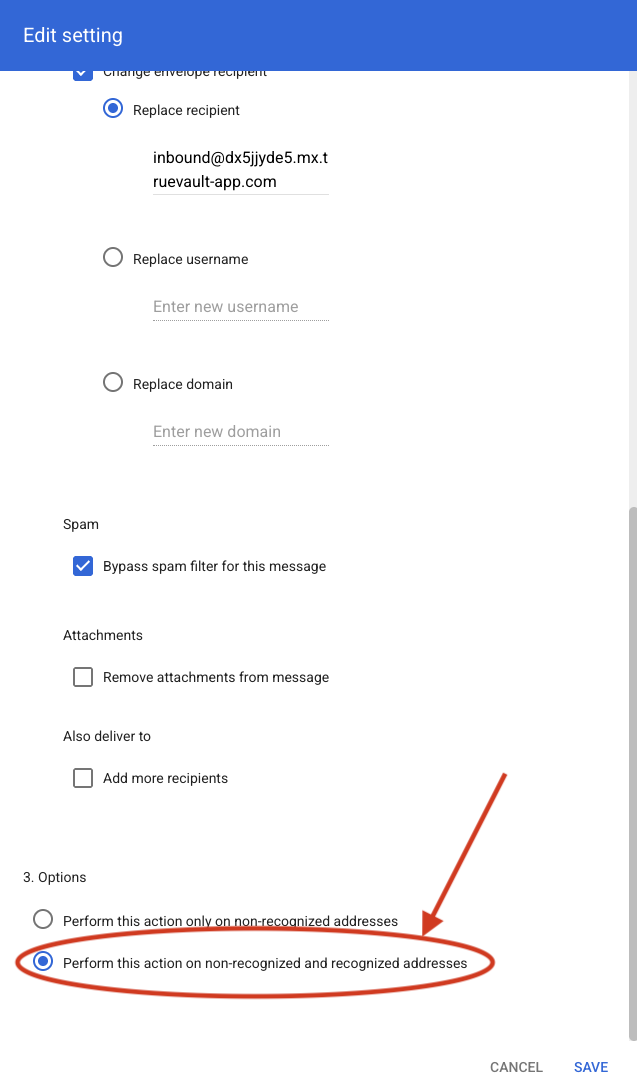
Check the Change envelope recipient box, then select the Replace recipient option. Paste the forwarding address you just copied.
-
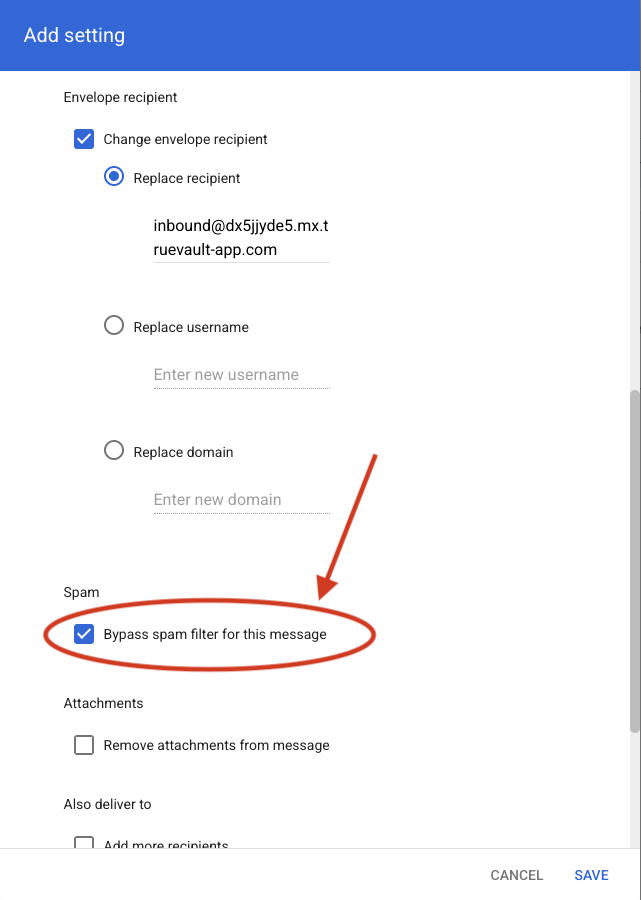
Scroll down and check Bypass spam filter.
-
-
Confirm under 3. Options the box next to Perform this action on non-recognized and recognized addresses.
-
Click Save.
-
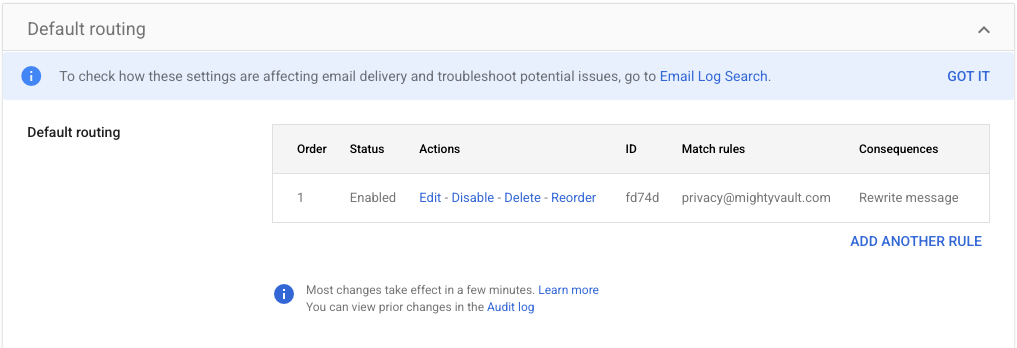
Confirm your new rule looks like this.
Remove email from any Google Groups
Note: This is only needed if the email address you entered is also the email address of an existing Google Group. For Default Routing to apply, that Group must be deleted.
-
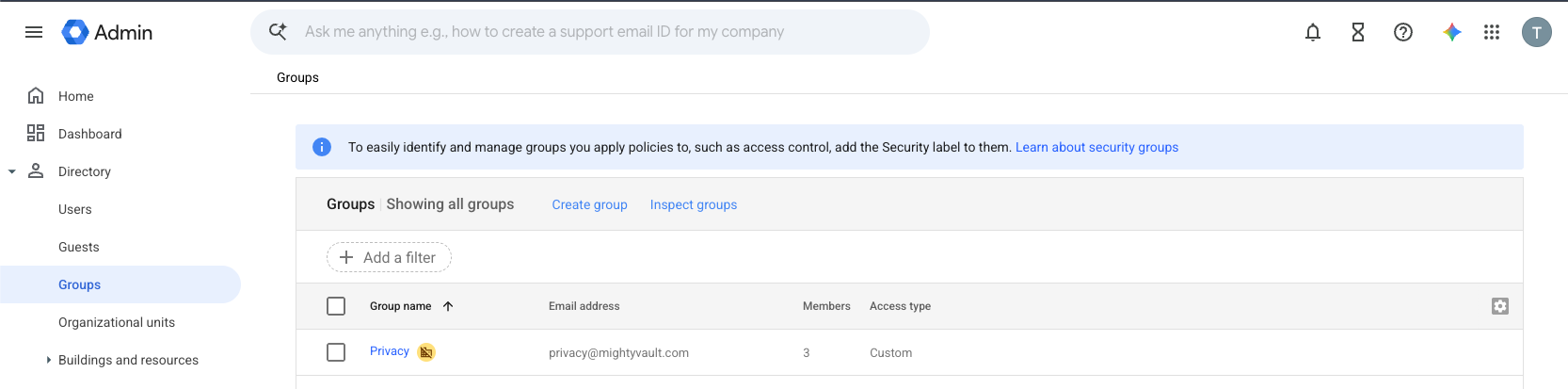
On the left, expand Directory, then select Groups.
-
Select the checkbox next to the matching group, then click Delete groups.

-
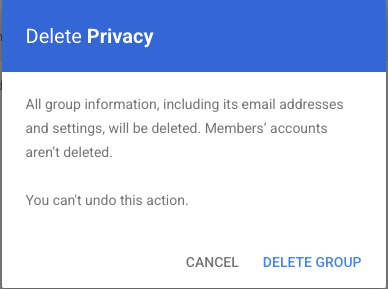
In the popup, click Delete group.
Done
You're all done! Return to the TrueVault app and complete the next steps there.