GTM as a Shopify Pixel
Some Shopify stores load Google Tag Manager through a Shopify custom pixel instead of adding the GTM snippet to their theme. This page explains how to make that setup work with TrueVault's consent management.
Note: This is not the usual or recommended setup. We recommend installing the GTM snippet directly in your Shopify theme, where the standard TrueVault CMP Template integration works without any custom code. Use the approach on this page only if you must load GTM through a custom pixel — for example, because of a platform or organizational constraint that prevents theme edits.
Background
Loading GTM as a Shopify pixel is not an ideal setup for performance measurement. Separately from any consent communication concerns, we do not recommend loading GTM in this way because Shopify loads pixels in a sandbox, so loading e.g., Google Analytics via GTM in this way may miss measurement on your site.
Why This Setup Needs Custom Code
Shopify runs custom pixels inside a sandbox — an isolated environment that cannot access the storefront page directly. GTM loaded inside a custom pixel gets its own separate dataLayer and cannot see anything the TrueVault CMP sets up on the main page, so consent events the CMP pushes to the page's window.dataLayer never reach the sandboxed container. Without extra code, GTM running in a custom pixel never learns the visitor's consent state.
However, the TrueVault CMP also communicates consent directly to Shopify's Customer Privacy API on every consent change. Shopify re-broadcasts that consent state into every pixel sandbox:
init.customerPrivacycarries the current consent state at the moment the pixel boots — so it does not matter how late the pixel or GTM loads.- The
visitorConsentCollectedevent fires inside the sandbox every time consent changes on the page.
The custom code below bridges those two signals into Google Consent Mode inside the sandbox.
Custom Pixel Code
Add the bridge code above the GTM snippet in your custom pixel, so the consent default is queued in the dataLayer before GTM loads. The following is a full example containing both the bridge code and the GTM snippet — replace the GTM-XXXXXXX container ID with your own:
// Step 0. Bridge Shopify customer privacy -> Google Consent Mode,
// so GTM (running in this sandbox) sees TrueVault consent state.
window.dataLayer = window.dataLayer || [];
function gtag(){ dataLayer.push(arguments); }

var mapConsent = function (c) {
  return {
    ad_storage:              c.marketingAllowed ? 'granted' : 'denied',
    ad_user_data:            c.marketingAllowed ? 'granted' : 'denied',
    ad_personalization:      (c.marketingAllowed && c.saleOfDataAllowed) ? 'granted' : 'denied',
    analytics_storage:       c.analyticsProcessingAllowed ? 'granted' : 'denied',
    personalization_storage: c.preferencesProcessingAllowed ? 'granted' : 'denied',
    functionality_storage:   'granted',
    security_storage:        'granted',
    // Proxy: Shopify has no notOptedOut signal. saleOfDataAllowed is false whenever
    // the visitor opted out (and also when advertising consent is denied — see the
    // fidelity note below).
    tv_not_opted_out:        c.saleOfDataAllowed ? 'granted' : 'denied'
  };
};

// Current consent state as of pixel boot (works no matter how late GTM loads)
var defaults = mapConsent(init.customerPrivacy);
defaults.wait_for_update = 500;
gtag('consent', 'default', defaults);

// Live re-broadcast: fires every time the CMP updates consent on the page
api.customerPrivacy.subscribe('visitorConsentCollected', function (event) {
  gtag('consent', 'update', mapConsent(event.customerPrivacy));
  dataLayer.push({ event: 'consentChoice' });
});

// Step 1. Standard GTM snippet (replace GTM-XXXXXXX with your container ID)
(function(w,d,s,l,i){w[l]=w[l]||[];w[l].push({'gtm.start':
new Date().getTime(),event:'gtm.js'});var f=d.getElementsByTagName(s)[0],
j=d.createElement(s),dl=l!='dataLayer'?'&l='+l:'';j.async=true;j.src=
'https://www.googletagmanager.com/gtm.js?id='+i+dl;f.parentNode.insertBefore(j,f);
})(window,document,'script','dataLayer','GTM-XXXXXXX');
The bridge also pushes the consentChoice event on every consent change, so a Consent Changed trigger works inside the sandboxed container the same way it does in a standard setup.
Configure the Pixel's Customer Privacy Settings
In the Shopify admin, the custom pixel's Customer privacy section must be configured so that Shopify never withholds the pixel:
- Permission must be set to Not required ("The pixel will always run.")
- Data sale must be set to Data collected does not qualify as data sale ("The pixel will collect data when the customer opts out of their data being sold.")
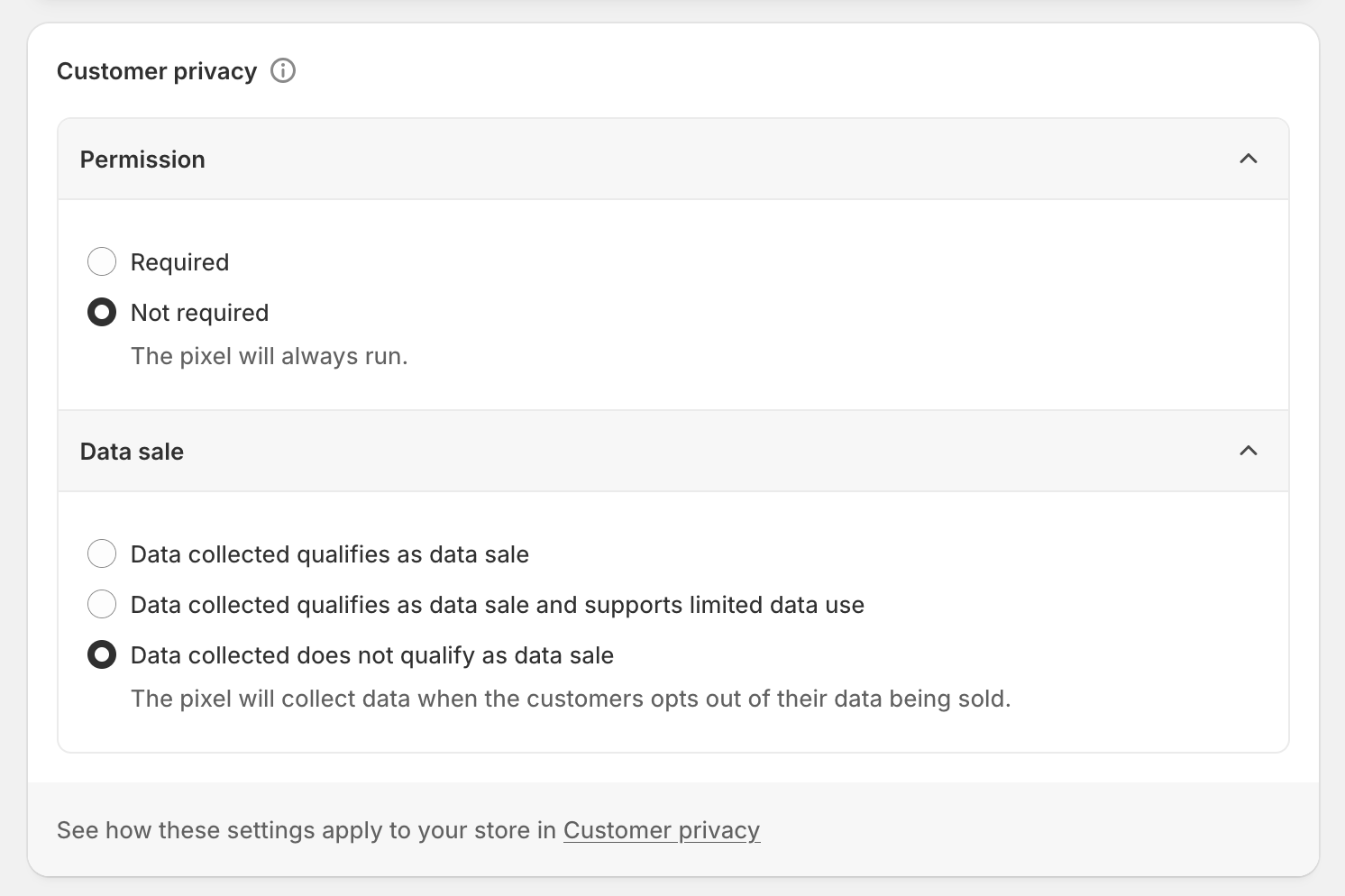
These settings do not mean consent is ignored — they move consent enforcement from Shopify to Google Tag Manager.
With the settings above, the pixel runs for every visitor, and GTM itself enforces consent for every tag in the container using the signals from the bridge code.
Container Caveats
Consent signal fidelity is reduced. Shopify's Customer Privacy API only carries four consent booleans (marketingAllowed, analyticsProcessingAllowed, preferencesProcessingAllowed, saleOfDataAllowed), which is less information than the CMP provides to a standard theme-installed container:
- There is no direct equivalent of the
tv_not_opted_outsignal. The bridge usessaleOfDataAllowedas a proxy, which isfalsewhenever the visitor has opted out — but also when the visitor declines advertising consent without opting out. In that case, tags gated ontv_not_opted_outstay suppressed even though the visitor has not opted out. The proxy only errs in the restrictive direction (suppressing tags that could fire), never the permissive one.
Verifying the Setup
Use GTM preview mode connected to the sandboxed container and check the Consent tab:
- On first load with no prior consent, the consent state should reflect the visitor's current state from
init.customerPrivacy. - Interact with the TrueVault banner and confirm a
consentChoiceevent appears, along with a consent update reflecting the new choices.
See Testing Your Google Tag Manager Setup for general verification guidance.