Automation: Attentive Integration Setup
Text Guide
To connect Attentive, you'll create a private Attentive app for your organization that TrueVault uses to send requests. Log in to your Attentive account, then:
-
Navigate to
Setup -> Marketplaceand clickCreate appin the upper-right corner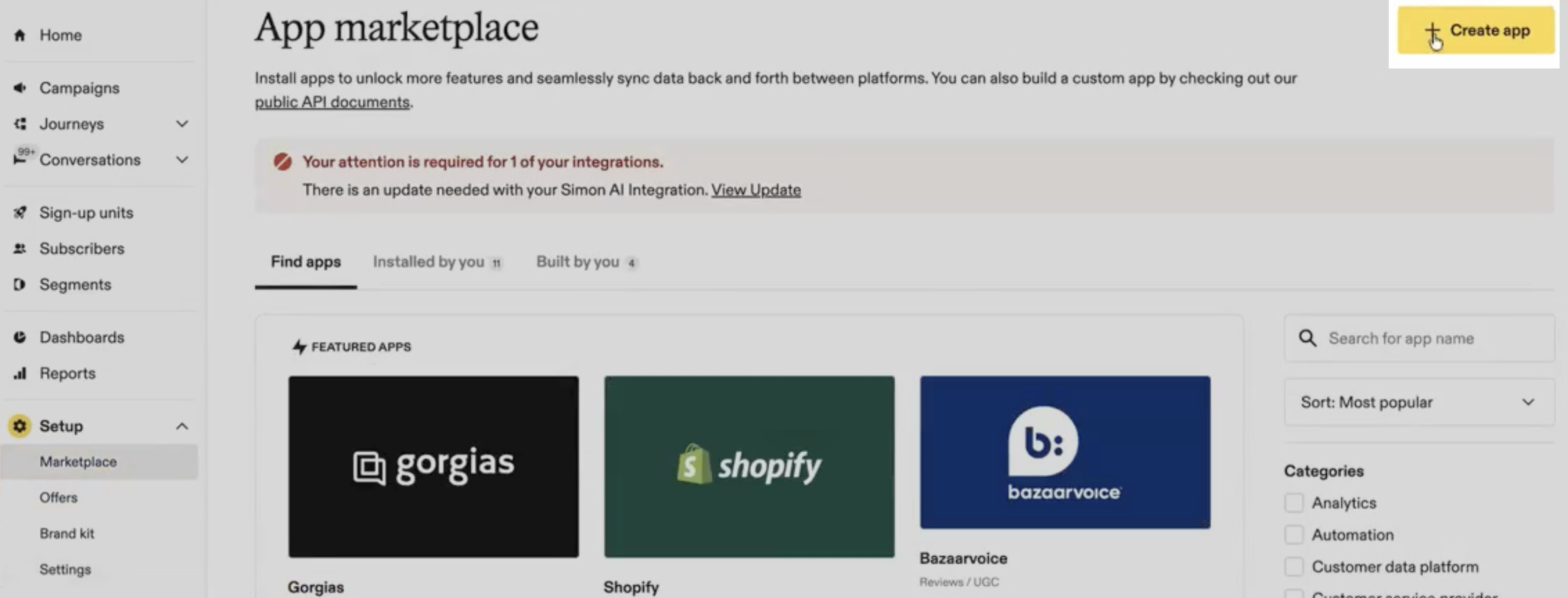
-
Name the app
TrueVaultand provide a contact email (either your own email or your Customer Success contact's email) -
Set the app's permissions for both Subscribers and Privacy Request to
Write

-
Click
Create -
In the
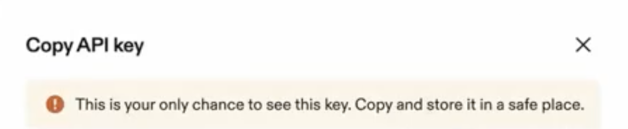
Copy API keypopup on the next screen, copy the API key somewhere safe like a password manager- This is the only time Attentive will show the key
-
Navigate to the Integrations Page in Polaris and click
Connectfor Attentive. Enter the API key into thePrivate App Tokenfield and clickContinue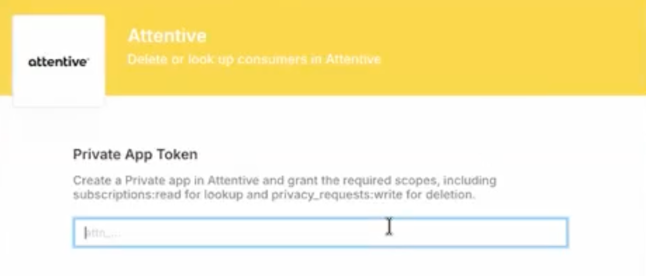
-
Confirm the popup shows
Connected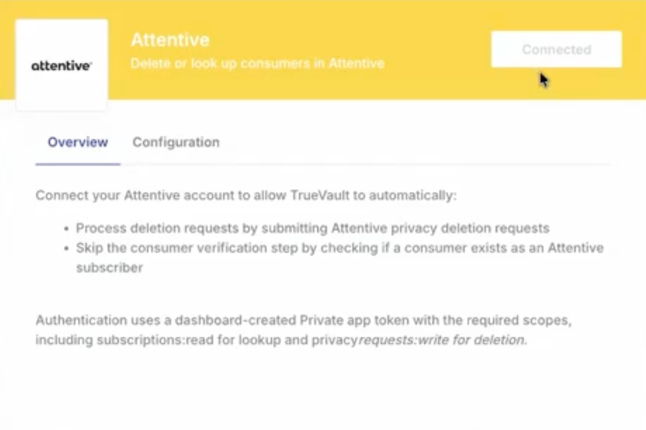
-
Open the
Configurationtab and confirm the Attentive integration is enabled for the workflows you want to automate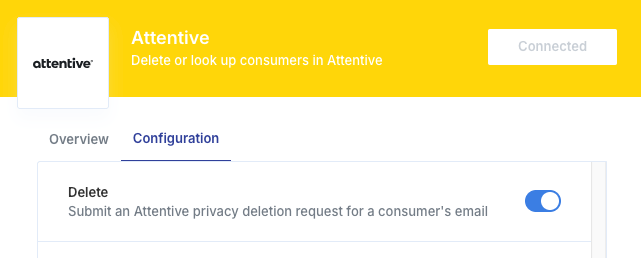
- The
Opt-Outworkflow is off by default. Only turn it on if you want Opt-Out, Limit, and Profiling Opt-Out requests processed as deletions (see Treating Opt-Outs as Deletions)
- The
-
Close the connection popup
Treating Opt-Outs as Deletions
Attentive doesn't have a dedicated opt-out API. Some businesses handle opt-outs in Attentive by deleting the subscriber instead, for example to keep them out of segments that are synced to ad networks. The Attentive integration has an optional Opt-Out workflow for this.
When the Opt-Out workflow is on, every automated opt-out request submits an Attentive privacy deletion request, exactly like a deletion request does. Attentive deletes the subscriber within 30 days, and the deletion can't be undone.
This includes every request type that Polaris automates as an opt-out:
- Request to Opt-Out
- Request to Limit (limit the use of sensitive personal information)
- Profiling Opt-Out
The workflow can't tell these request types apart, so you can't turn it on for only one of them.
The Opt-Out workflow is off by default, so connecting Attentive never deletes subscribers for any of these requests unless you turn it on. To turn it on:
- Navigate to the Integrations Page in Polaris and open Attentive
- On the
Configurationtab, toggle on theOpt-Outworkflow - Close the popup
Opt-Out, Limit, and Profiling Opt-Out requests that Polaris automates while the workflow is on will be sent to Attentive as deletions. To stop, toggle the Opt-Out workflow back off.
Validating the Integration
According to Attentive's documentation, a successful deletion request "will delete a subscriber within thirty days." Attentive only deletes subscribers that match the submitted email address. This applies equally to Opt-Out, Limit, and Profiling Opt-Out requests if you've turned on the Opt-Out workflow.
During the initial rollout of this automation, monitor your Attentive subscriber list to confirm that deleted consumers are dropping off as expected.